Open the Themes screen of any recent WordPress site and you will find two kinds of themes side by side that look the same in a screenshot but work very differently underneath: block themes and classic themes. The difference decides how you edit your header and footer, where your design settings live, and how much code you need to touch when you want to change something.
Short answer: if you are starting a new site and want to design everything inside WordPress without extra plugins, a block theme is the natural choice. If you already run a site on a well-built classic theme that does what you need, there is no urgent reason to move, because classic themes are still fully supported. The rest of this guide explains why, so you can decide with confidence.
What a classic theme is
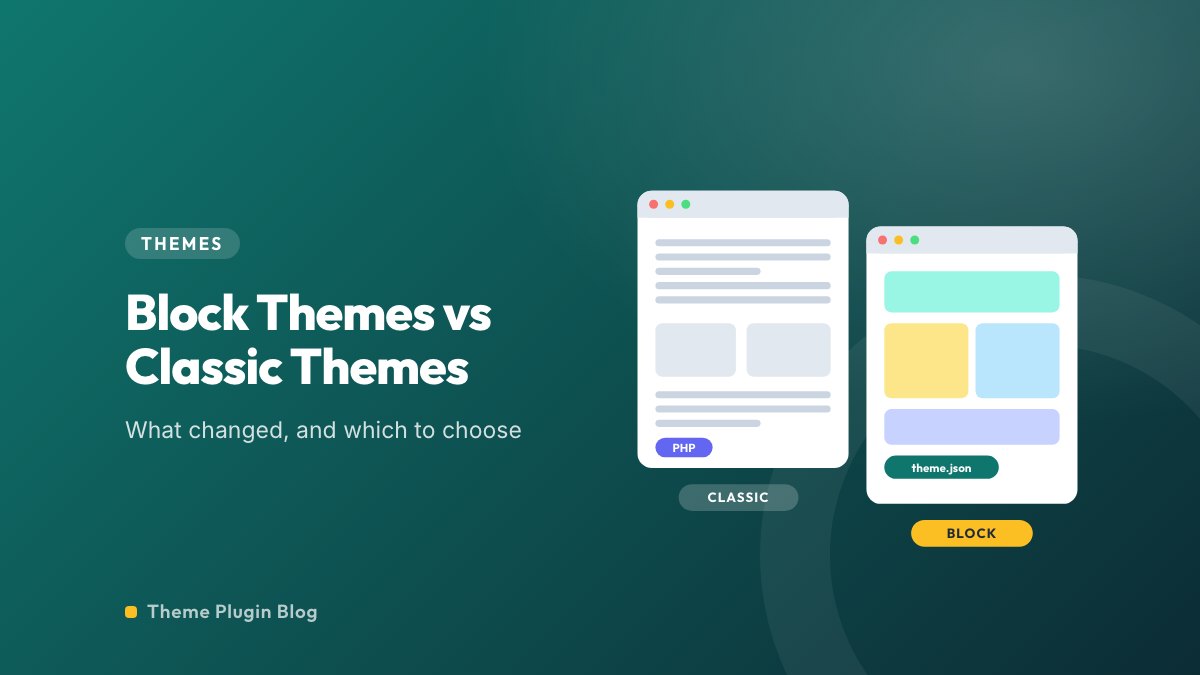
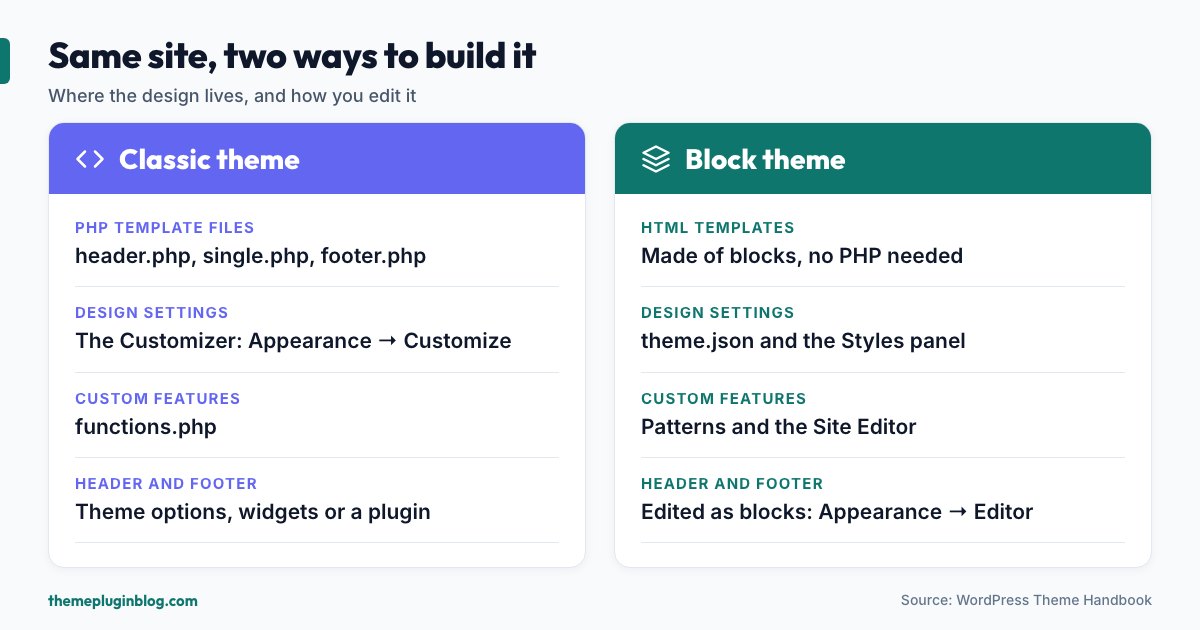
A classic theme is built with PHP template files. Files such as header.php, single.php and footer.php contain a mix of HTML and PHP, and WordPress assembles them into a page. According to the official Theme Handbook, this system "is still supported in WordPress today" and goes back to WordPress 1.5 in 2005. Building one needs some knowledge of PHP, HTML and CSS.
For the person running the site, a classic theme usually means:
- The Customizer (Appearance → Customize) for colours, fonts, logo and layout options, as the theme author decided to expose them.
- Menus and widgets managed in their own screens, placed into "locations" and "widget areas" that the theme defines.
- A
functions.phpfile where the theme registers its features and where many site-specific tweaks end up. - The block editor for content only. Since the block editor arrived in WordPress 5.0, you build posts and pages with blocks even on a classic theme, but the header, footer and archive layouts stay under the theme's control.
What a block theme is
The Theme Handbook calls block themes "the modern method of building WordPress themes", built entirely out of blocks. Instead of PHP templates, a block theme uses HTML templates that contain block markup. A file called theme.json defines global settings and styles: the colour palette, the font sizes, the spacing scale, the content width.
The result is that everything on the page is a block you can edit: the navigation menu, the header, the post template, the footer. You do that in the Site Editor (Appearance → Editor). The Styles panel in the Site Editor lets you change the global look defined in theme.json without writing code, and you can switch to a different style variation if the theme ships one.
Block themes also lean on block patterns, ready-made arrangements of blocks (a pricing table, a hero section, a three-column feature list) that you insert and then edit. The Handbook describes block themes as "the future of the WordPress project", which is why most of its current documentation focuses on them.
Side-by-side differences that affect you
| Question | Classic theme | Block theme |
|---|---|---|
| How are page layouts built? | PHP template files | HTML templates made of blocks |
| Where do I change colours and fonts? | Customizer (Appearance → Customize), as the theme allows | Site Editor → Styles, driven by theme.json |
| Can I edit the header and footer visually? | Only through theme options, widgets or a plugin | Yes, they are template parts you edit with blocks |
| How are menus handled? | Menu screen and theme "locations" | Navigation block inside templates |
| Skill needed for deeper changes | PHP, HTML, CSS | Mostly the editor; JSON and CSS for fine control |
| Still supported? | Yes | Yes, and the focus of new development |
One practical point from the official documentation: block themes do not use the Customizer in the same way as classic themes, because they rely on the Site Editor to edit all parts of the site. If your workflow depends on a specific Customizer panel, that is a signal to look closely before switching.
What about "hybrid" themes?
You will see the word hybrid in tutorials. The Theme Handbook is careful here: a hybrid theme is a classic theme that adopts some block features, such as global settings and styles or block template parts, but it is a community term, not an official theme type, and hybrids are still classic themes. Many popular multipurpose themes sit in this space: they use the Customizer for their own options while working well with the block editor and block patterns. If a theme advertises "full site editing" support, check how much of the site you can truly edit in the Site Editor rather than relying on the label.
A short history in plain terms
WordPress 5.0 introduced the block editor for posts and pages. For several years themes stayed classic and only content was block-based. The turning point came with Twenty Twenty-Two, which the WordPress documentation describes as the first ever default block theme, requiring WordPress 5.9 or newer. Since then the default themes WordPress ships have followed the block approach. Twenty Twenty-Five, for example, is listed in the official theme directory with the block editor patterns and block editor styles tags, and over a million active installs as of 5 November 2026.
When a block theme is the better choice
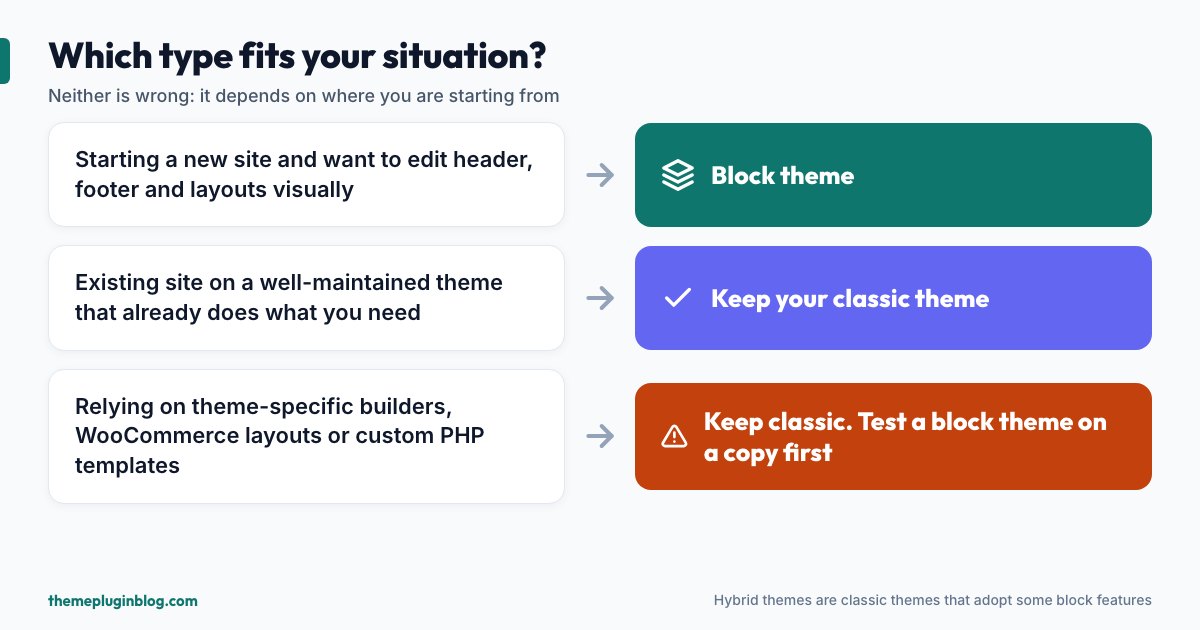
- You are starting a new site. You get a visual header, footer and template editor without paying for a page builder or theme builder.
- You want consistent design with little code. Defining colours, fonts and spacing once in
theme.jsonmeans every block follows the same rules. - You like working with patterns. Landing pages become a matter of assembling and editing patterns.
- You want to stay aligned with where WordPress is going. New editor features arrive in the block world first.
When a classic theme still makes sense
- Your current site works well. A stable classic theme that is regularly updated is not a problem to be fixed.
- You rely on theme-specific features. Some themes bundle things such as advanced header builders, WooCommerce layout options or demo importers that you would have to rebuild.
- Your team knows PHP templates. If custom template files are part of how you work, keep that investment unless there is a clear reason.
- You use a page builder as your design tool. If the builder controls layouts, the theme only needs to stay out of the way, and a lightweight classic or hybrid theme can do that well.
What changes if you switch themes
Moving from a classic theme to a block theme (or the other way round) does not delete your posts and pages, but anything tied to the old theme will not follow automatically. Expect to rebuild or re-check:
- Header and footer layout, and the menu location assignments.
- Widgets in sidebars and footers (block themes do not use widget areas the same way).
- Customizer settings and any CSS added through the Customizer.
- Page-specific layouts that used the old theme's custom templates or shortcodes.
- Anything a plugin added through hooks specific to the old theme.
The safe way to do this is on a copy of your site (a staging site or a local copy), not on the live one. Take a full backup first, preview the new theme with Live Preview, and click through your most important pages on a phone and a desktop before you activate anything. The official documentation also warns that if a theme's preview looks blank you should investigate before activating it, because the site may not display correctly otherwise.
A quick way to see the difference yourself
You do not have to take anyone's word for it. On a test site, go to Appearance → Themes → Add New, install a block theme such as Twenty Twenty-Five, and activate it. Then open Appearance → Editor and try three things: change the site-wide font under Styles, edit the footer, and add a pattern to a page. Next, switch to a classic theme and notice what moved: the editor entry disappears, and a Customize link takes its place. Ten minutes of this tells you more about how each approach feels than any comparison table.
The bottom line
Block themes and classic themes are two ways of building the same thing. Block themes give you more of the site inside the editor, with fewer plugins and less code. Classic themes give you maturity, a huge existing ecosystem and a familiar workflow. For a new site, start with a block theme unless you have a concrete reason not to. For an existing site, move only when you have a goal the current theme cannot meet, and do it on a copy first.
Sources
Facts in this article come from the official WordPress documentation and the WordPress.org theme directory, checked on 5 November 2026.