Sooner or later, almost everyone who runs a WordPress site wants to change something their theme does not offer: a different template for blog posts, a bit of custom code, a tweak to a header. The tempting move is to open the theme's files and edit them. The next theme update then erases every change, and you are back where you started. A child theme exists to prevent exactly that.
This guide explains what a child theme is, how it is built, when you genuinely need one (and when you do not, especially on a block theme), and the mistakes that most often cause a white screen.
What a child theme is
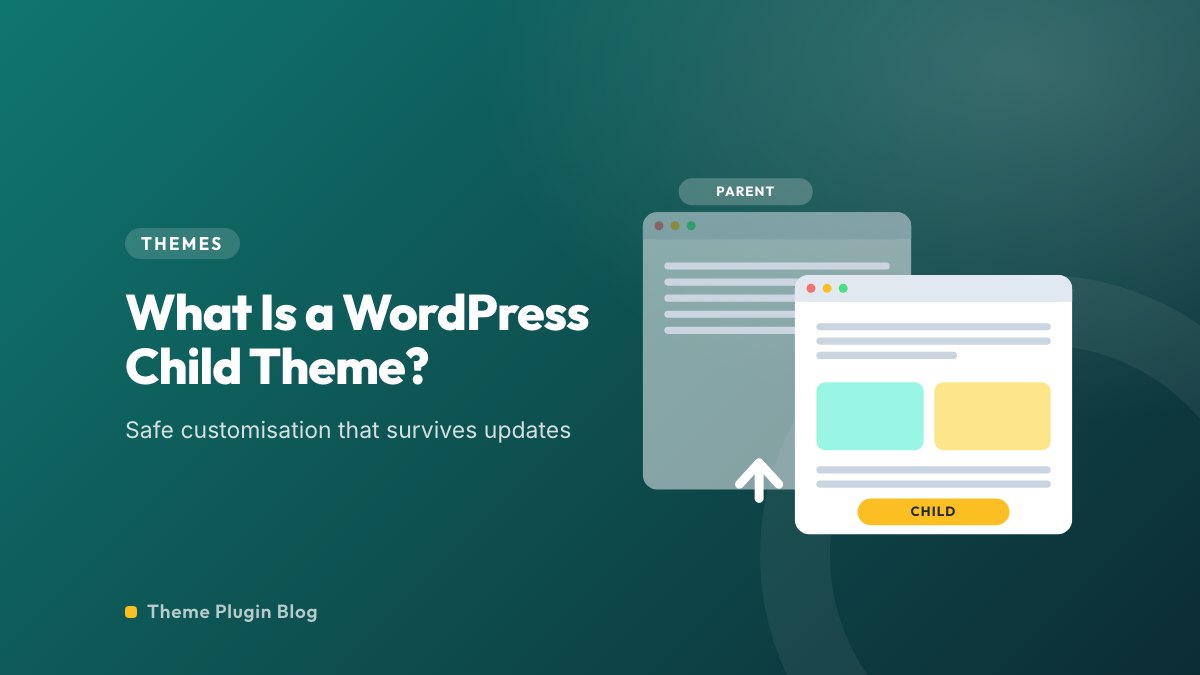
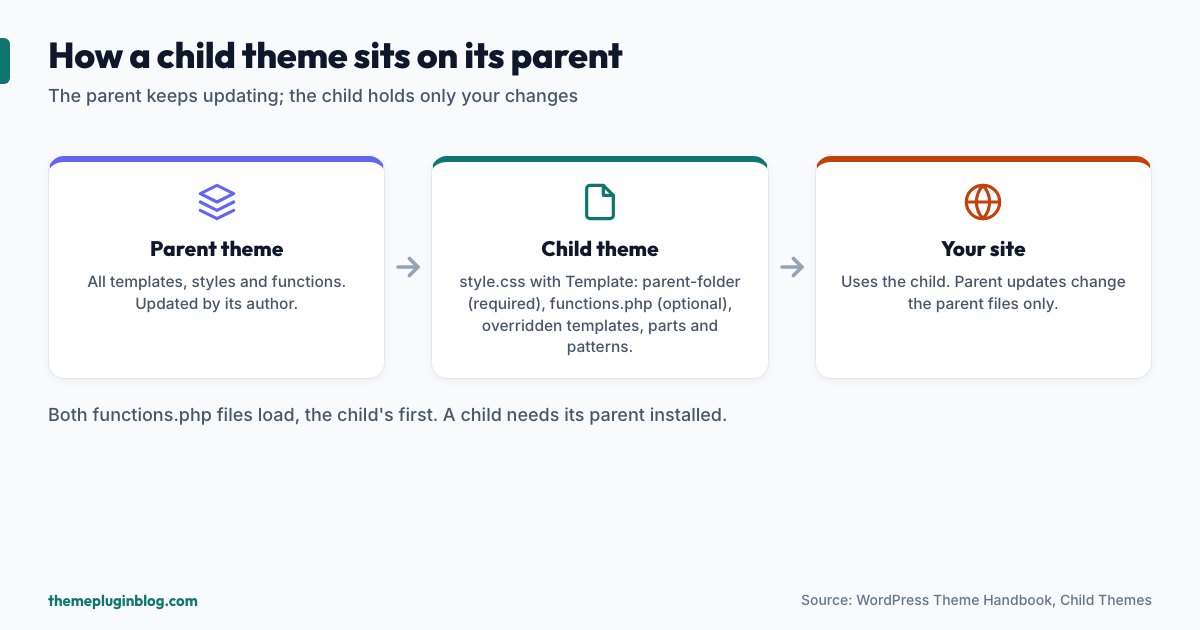
The WordPress Theme Handbook defines a child theme as a theme that extends a parent theme, one that lets you "modify an existing theme without directly editing that theme's code". It inherits the design and functionality of the parent, and you add only what you want to change. It can be as small as a few colour changes or as large as a full set of template overrides. There are only two levels: a parent and a child. A child cannot have a child of its own.
Why use one
- Your changes survive updates. The handbook warns that if you add a function to the parent's
functions.php, "the next time your theme is updated, your function will disappear". Code in a child theme is untouched when the parent updates. - Your changes live in one place. Everything you customised is in a small folder you can read, back up, move to another site or hand to a colleague.
- It saves effort. You write only the code you need, and the parent supplies the rest.
- Updates stay safe. You can keep receiving security fixes for the parent, which matters because outdated code is a common way sites get hacked (see our safe update routine).
One caveat from the handbook: for extensive changes, it is often better to fork the original theme and build a full parent theme of your own, because a child theme that overrides most of its parent is a sign you are fighting the design.
Do you need one? It depends on your theme type
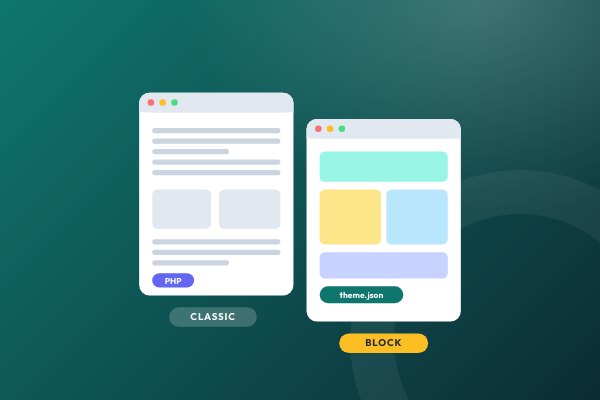
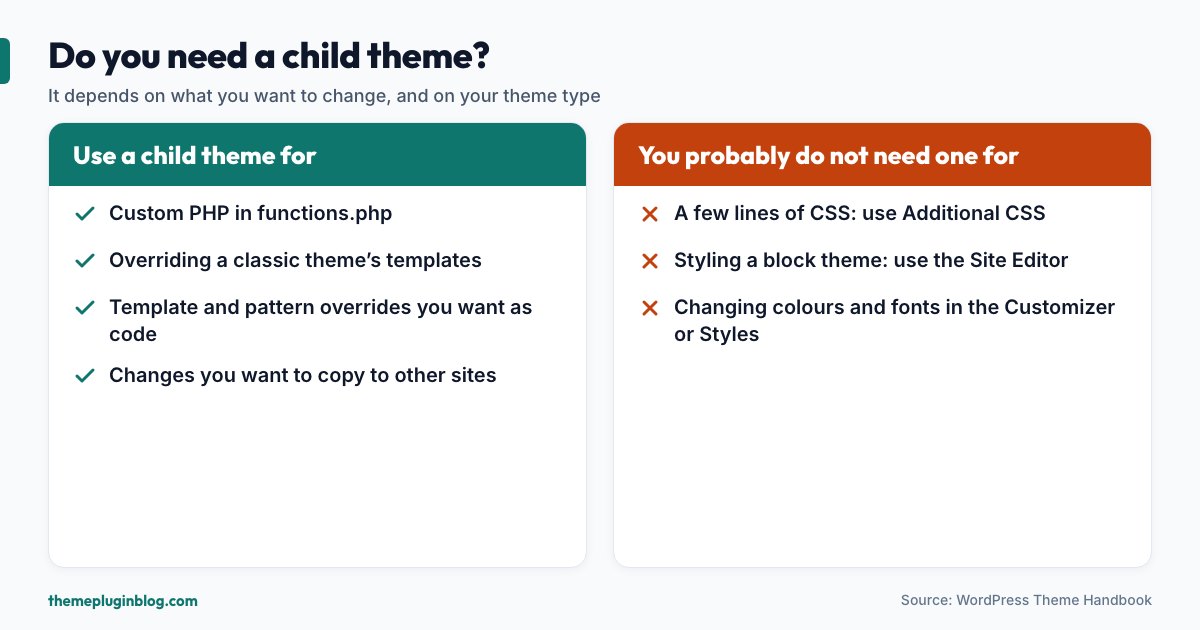
On a classic theme (the PHP-template kind, see our guide to block themes versus classic themes), a child theme is the standard way to add custom code or override a template. If all you want is a few lines of CSS, the Customizer's "Additional CSS" box is usually enough and needs no child theme at all.
On a block theme, you may need one far less often. Block themes keep their design in theme.json, HTML templates and patterns, and the Site Editor lets you change styles, templates and template parts directly. The handbook notes that these user customisations are stored in the database and sit on top of the theme as a kind of extra layer that survives updates. So for colours, fonts, spacing and the layout of headers and footers on a block theme, try the Site Editor first. Reach for a child theme when you want your changes to be code you can version, copy to other sites or ship as a package, or when you need custom PHP.
What goes into a child theme
The minimum is one file. The handbook calls style.css "the one absolutely necessary file for a child theme to exist". Its header comment must include the usual theme fields plus one that matters most:
/*
Theme Name:   Twenty Twenty-Five Child
Template:     twentytwentyfive
Version:      1.0.0
*/
Template must be a 100% match of the folder name of the parent theme. A single wrong character (or a capital letter that is lower case in the folder) and WordPress will tell you the parent is missing.
A functions.php file is optional. If you add one, WordPress loads both files, the child's first and then the parent's, so you add to the parent rather than replacing it. Any templates, template parts or patterns you add with the same file name as a parent file override it. The handbook adds a detail for patterns: they must also have the same registered Slug field. You can add new templates that do not exist in the parent as well.
Loading the parent's styles
On a classic theme, the child's style.css does not automatically pull in the parent's styles; you tell WordPress to load them by adding code to the child's functions.php. The handbook's approach is to hook into wp_enqueue_scripts and use wp_enqueue_style(), loading the child's stylesheet with get_stylesheet_uri() and the parent's with get_parent_theme_file_uri( 'style.css' ). A typical version looks like this:
<?php
add_action( 'wp_enqueue_scripts', function () {
    wp_enqueue_style( 'parent-style', get_parent_theme_file_uri( 'style.css' ) );
    wp_enqueue_style( 'child-style', get_stylesheet_uri(), array( 'parent-style' ) );
} );
Check first how your parent loads its CSS, because the right code differs. The handbook explains three cases: if the parent already loads both its own and the child's stylesheet, you need no extra code; if it loads only its own, enqueue the child's; and if it loads only the active theme's stylesheet through get_stylesheet_uri(), you may also need to enqueue the parent's. It gives Twenty Twenty-Four as an example of a parent that loads no stylesheet at all, so its child must enqueue style.css itself. Block themes mostly handle styling through theme.json, so this step is often unnecessary for them.
How to create one, step by step
- Back up your site and, if you can, try this on a staging or local copy first.
- Find the parent's folder name in
wp-content/themes/(for exampletwentytwentyfive). This is the value forTemplate. - Create a new folder next to it, named something like
twentytwentyfive-child. - Add
style.csswith the header above, using your own theme name. - Add
functions.phpif you need the style-loading code or custom PHP. - Upload the folder by SFTP or zip it and use Appearance → Themes → Add New → Upload Theme (see how to install a theme). The parent theme must stay installed.
- Preview, then activate the child, not the parent. Check your home page, a post, your menus and a phone.
Many popular themes also offer a ready-made child theme to download, which saves the typing and avoids typos in the header.
Common mistakes
- A wrong
Templatevalue. It must match the parent's folder name exactly. This is the most common reason a child theme shows as "broken". - Copying the parent's functions into the child. The handbook warns against it: duplicate function names can cause fatal errors. Add new functions, or unhook and replace the parent's using the filters and actions the parent provides.
- Editing the parent anyway. A "quick fix" in the parent is exactly what the next update erases.
- Loading the same stylesheet twice. If your parent already loads the child's CSS, enqueueing it again wastes a request and can reorder rules.
- Forgetting translations. The handbook notes that a child theme needs its own unique text domain and should use
load_child_theme_textdomain(), notload_theme_textdomain(), when loading translations manually. - Overriding too much. If you have copied most of the parent's templates, consider whether a different parent theme would suit you better.
What if the parent is replaced or removed?
A child theme cannot work without its parent: it depends on the parent's templates, styles and functions. If you delete the parent, or switch the parent to another theme, the child breaks. Keep the parent installed and updated, and remember that when the parent changes its structure in a major update, your overrides may need a review. After a big parent update, load a few pages and check that your overridden templates still look right.
The bottom line
A child theme is a small, safe way to customise a theme without losing your changes when it updates. Build one when you need custom PHP, template overrides or portable code. Skip it for a few lines of CSS, and on a block theme use the Site Editor first. Either way, keep the Template name exact, never edit the parent, and test on a copy before you activate.
Sources
Checked on 5 November 2026 against the official WordPress Theme Handbook.