A slow WordPress site loses visitors, and it can also hold back how well your pages perform in search. The good news is that speed problems are rarely mysterious. Most of them come from the same handful of causes: old PHP, oversized images, no caching, too many plugins and heavy third-party scripts. The better news is that you can fix them in a sensible order, measuring as you go, without buying a stack of "speed" plugins.
This guide gives you that order. It is based on the official WordPress documentation, Google's Core Web Vitals targets and WordPress core's own change notes, and it tells you how to check whether each step really helped. We have not run benchmarks on your site, so we do not promise numbers; the point is to measure your own pages before and after.
Step 0: measure first
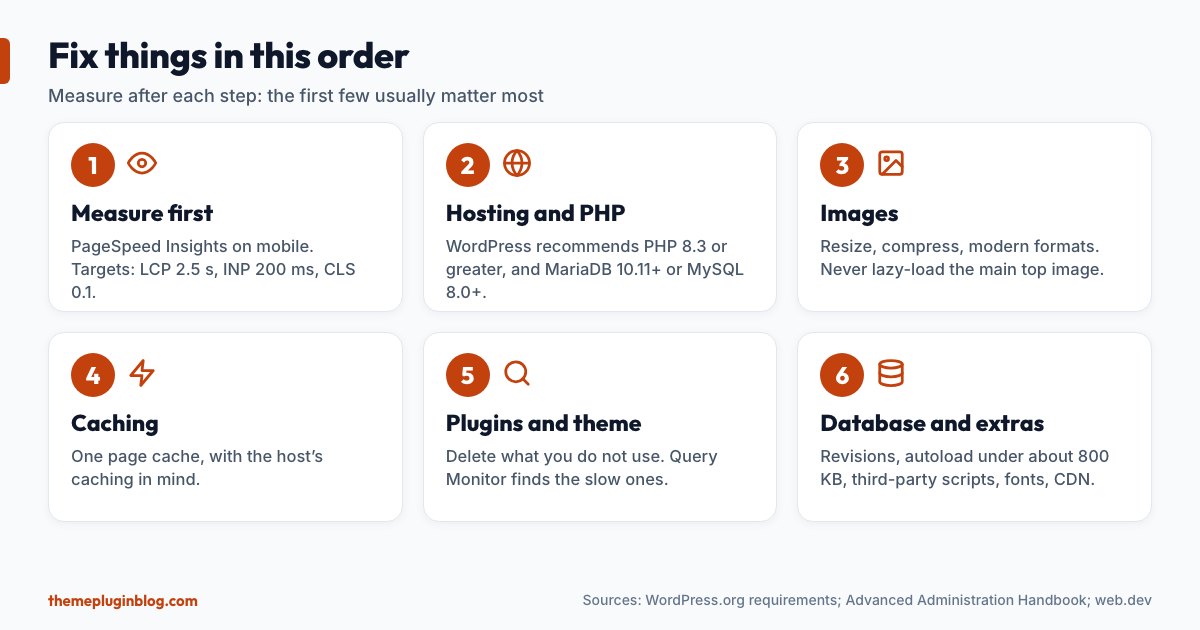
Do not tune blindly. Test two or three important pages (your home page, a typical article and, if you have one, a product page) with PageSpeed Insights on mobile, and write down the results. Google's Core Web Vitals give you the targets, judged on real visitors' data at the 75th percentile, for mobile and desktop separately:
- Largest Contentful Paint (LCP): 2.5 seconds or less is good.
- Interaction to Next Paint (INP): 200 milliseconds or less is good.
- Cumulative Layout Shift (CLS): 0.1 or less is good.
Lab tools estimate; real-user ("field") data is what Google uses. If your site is new, PageSpeed Insights may only show lab results. Use them to compare before and after, and look at the suggestions, but do not chase a perfect score: a green set of three vitals matters more than a number of 100.
Step 1: hosting and PHP version
Everything else sits on top of your server. WordPress.org's requirements page recommends PHP version 8.3 or greater, MariaDB 10.11 or greater or MySQL 8.0 or greater, and HTTPS support, with Apache or Nginx as the web server. It adds that WordPress still works with PHP 7.4 and MySQL 5.5.5, but that those versions have reached end of life and may expose your site to security vulnerabilities. The WordPress performance documentation also calls running a recent PHP version "essential", since newer versions usually perform better.
Check which PHP version you run (the Tools → Site Health → Info screen shows it) and, if your host lets you, switch to the newest version your theme and plugins support. Do it after a backup, and test the site afterwards. If your host cannot offer a modern PHP or is slow even when idle, better hosting is the single biggest fix, and no plugin can substitute for it.
Step 2: images, usually the biggest win
Images are typically the heaviest part of a page, and one oversized image can be your Largest Contentful Paint. The WordPress documentation's advice: remove images you do not need, choose the right format and compression, consider WebP (smaller than older formats), and serve media through a CDN if you can.
WordPress core has quietly taken over several chores in recent releases, so you may not need a plugin for them:
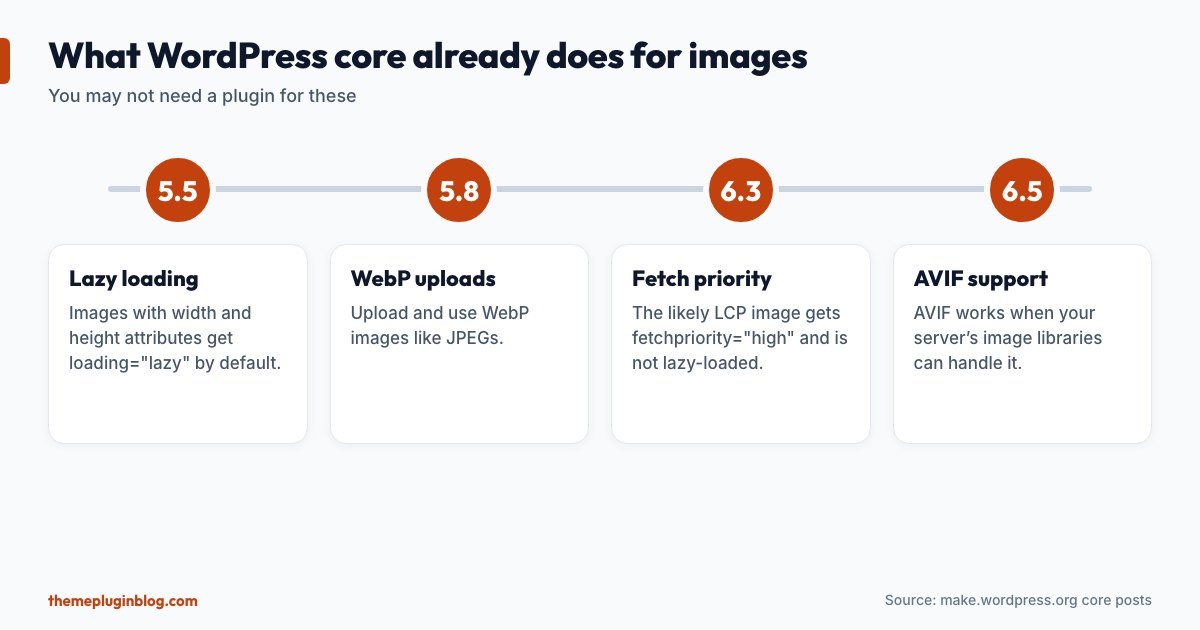
- Lazy loading (WordPress 5.5): images with width and height attributes get
loading="lazy", so images below the fold load only as people scroll. - WebP (5.8): you can upload and use WebP images like JPEGs.
- Fetch priority (6.3): core marks the image most likely to be the LCP element with
fetchpriority="high"so it loads early, and it does not lazy-load that same image. The change notes reported an average improvement of about 10% in LCP in lab tests. - AVIF (6.5): AVIF uploads are supported when your server's image libraries can handle them.
What core does not do is shrink the huge photo you uploaded straight from a camera. Resize images to the size they are displayed at before you upload (a blog column rarely needs more than about 1,200 pixels across), and use compression. If you have a large existing library, an image optimisation plugin can process it in bulk; see our guide to the best image optimisation plugins. One rule worth remembering: never lazy-load the main image at the top of the page, because that delays the very thing Google measures.
Step 3: caching
Caching saves the work WordPress has already done. The documentation says page caching can improve performance "several hundred times over for fairly static pages", and also covers browser caching, object caching and PHP opcode caching. For most sites, one page-cache solution, switched on with sensible defaults, delivers most of the benefit. Check whether your host already provides caching before adding a plugin, and use only one page cache. Our guide to caching plugins covers the layers and the choices in detail.
Step 4: audit your theme and plugins
Each plugin and every theme feature you do not use still has a cost if it loads code on every page. Go through your plugin list: deactivate and delete anything you no longer use, replace heavy plugins with lighter ones or with core features, and be wary of plugins that load scripts and styles sitewide when they are only needed on one page.
To find the real culprits, install Query Monitor (more than 200,000 active installs, rated 98 out of 100). It is a developer panel that shows slow database queries, PHP errors, enqueued scripts and styles and HTTP calls, so you can see which plugin or theme is responsible instead of guessing. You can keep it deactivated until you need it. If your theme is a heavyweight multipurpose one, compare it with a lighter one (see our free themes for blogs), remembering that a theme's own speed claims describe the theme in isolation, and your content decides the rest.
Step 5: the database
Over time, WordPress databases collect clutter. The documentation suggests using InnoDB tables (and converting older MyISAM ones), limiting how many revisions WordPress stores for each post, and keeping autoloaded options (settings loaded on every request) small, under about 800 KB, switching autoload off for options that do not need it. Always take a backup before cleaning anything, and be cautious with tools that delete data in bulk. A tidy database matters most on large sites; on a small blog the gain is usually modest.
Step 6: the extras that quietly slow pages
- Third-party scripts: analytics, chat widgets, ad scripts, social embeds and fonts from other servers can each add delay. Keep the ones you truly use.
- Fonts: use one or two font families, and prefer fonts loaded from your own server where your theme allows.
- Embeds: a video embed loads a lot of code; consider a thumbnail that loads the player on click.
- A CDN: serves static files from locations near visitors. Many hosts and caching plugins include one.
- The Performance Lab plugin (more than 100,000 installs) is a collection of features from WordPress's own performance team, most of which are meant to be merged into core eventually. It lets you try them early, at your own risk of change.
Common mistakes
- Installing several speed plugins. Two caching plugins, or an optimiser plus a cache plus a CDN plugin all minifying the same files, tend to conflict. Add one thing at a time and test.
- Judging by the dashboard only. Logged-in users usually bypass the cache. Test in a private window.
- Chasing a 100 score. Fix what hurts real visitors: slow loading, laggy taps, jumping layouts.
- Skipping a backup before changes. Minification and combining options can break a layout; a backup makes any experiment safe.
A simple plan for this week
- Measure your three key pages on mobile and save the results.
- Check PHP version; ask your host to move you to the newest your site supports.
- Resize and compress your biggest images; check your LCP image is not lazy-loaded.
- Turn on one page cache (or confirm the host's).
- Delete unused plugins; use Query Monitor on your slowest page.
- Measure again and compare.
The bottom line
Speeding up WordPress is mostly sequence and discipline: modern hosting and PHP first, then images, then caching, then a tidy plugin list, with a measurement after each step. Most of the gain comes from the first few steps, and most of the trouble comes from piling on tools without testing. Fix the big things, check the numbers, and stop when your real visitors' Core Web Vitals are in the green.
Sources
Checked on 5 November 2026. Plugin figures are from the WordPress.org plugin API; image-feature versions are from make.wordpress.org core posts.
- WordPress.org: Requirements
- WordPress Advanced Administration Handbook: Optimization
- web.dev: Web Vitals
- Make WordPress Core: Lazy-loading images in 5.5
- Make WordPress Core: Enabling WebP by default
- Make WordPress Core: Image performance enhancements in WordPress 6.3
- Make WordPress Core: WordPress 6.5 adds AVIF support
- Query Monitor
- Performance Lab
- PageSpeed Insights