There are thousands of WordPress themes, and most of them look great in their demo. That is exactly the problem: a demo is built to impress, not to tell you how the theme behaves on your content, on a slow phone, or two years from now when its author has moved on. Choosing well means looking past the screenshot at a handful of facts you can check in ten minutes.
This guide gives you a practical checklist, shows you where to find each fact, and points out the common mistakes that lead people to switch themes (and rebuild their site) after only a few months.
Step 1: Decide what the site has to do
Before you open a single demo, write down in one sentence what the site is for: "a personal blog with a newsletter box", "a portfolio with a contact form", "a small shop with twenty products". Then list the two or three features you cannot do without, such as a mega menu, a product grid, or a landing-page template.
This matters because the best theme for a text-heavy blog is rarely the best for a shop. A theme that bundles dozens of layouts, sliders and animation effects can be a poor fit for a simple blog: you pay for that flexibility in page weight and in settings screens you will never use.
Step 2: Start where themes are reviewed
The official WordPress Theme Directory is the safest place to start. The WordPress documentation says that every theme in the directory is reviewed by a dedicated team and tested against a wide range of rules, which are meant to ensure a secure and pleasant experience for theme users. The directory lets you filter by layout, subject and features, including a filter for block themes, and its Preview button shows a live demo.
Premium themes sold elsewhere can be excellent, but they do not go through that same review. If you buy one, buy from the developer's own site or a well-known marketplace, and never from a site offering "free" copies of paid themes. Pirated ("nulled") themes are a classic way for malicious code to get onto a website.
Step 3: Read the numbers on the theme's page
Every theme in the directory shows a few facts that tell you more than the screenshot does. Here is what to look at, using real figures from the directory as of 5 November 2026:
| Theme | Active installs | Rating | Last updated |
|---|---|---|---|
| Astra | 1,000,000+ | 98/100 (6,555 ratings) | 29 October 2026 |
| Kadence | 500,000+ | 98/100 (456 ratings) | 24 July 2026 |
| GeneratePress | 500,000+ | 98/100 (1,427 ratings) | 1 December 2025 |
| Blocksy | 300,000+ | 100/100 (873 ratings) | 30 October 2026 |
- Active installations. A theme used by hundreds of thousands of sites has been tested on a huge variety of hosts, plugins and content. It is not a guarantee of quality, but it is a useful signal. The directory shows this as a minimum ("1,000,000+").
- Rating and number of ratings. A rating of 98 out of 100 (about 4.9 stars) from thousands of people means more than a perfect score from five. Read a few of the lowest reviews: they tell you what goes wrong.
- Last updated. A theme that has not been touched in a year may still work, and a mature theme can be stable for a long time, but frequent updates show that someone is keeping up with new WordPress and PHP versions. Look at the date together with the version number.
- Required PHP version. Check it against what your host runs. A theme that asks for an old PHP version is a warning sign; one that asks for a recent one is fine as long as your host supports it.
- Tags. The tag list shows features such as Accessibility ready, Block editor patterns, Blog and E-commerce. Treat tags as a starting point, not proof.
Notice that the last-updated column is a reason to read, not a reason to reject. A theme such as GeneratePress is deliberately lean and has a very high rating, so a date from December 2025 is not alarming in itself. What you want is an author who responds to support questions and ships fixes when WordPress changes.
Step 4: Check speed the way Google measures it
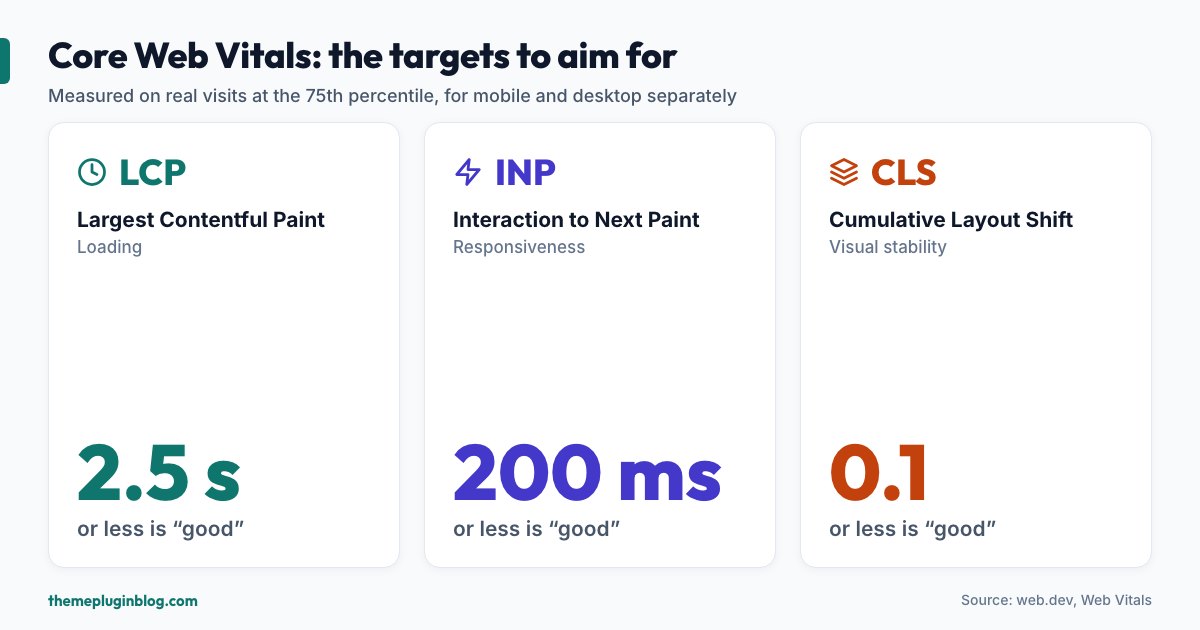
Speed is part of how visitors experience your site, and Google's Core Web Vitals give you concrete targets. As documented on web.dev, there are three metrics, each judged on real visitors' data at the 75th percentile, separately for mobile and desktop:
- Largest Contentful Paint (LCP), which measures loading. Good is 2.5 seconds or less.
- Interaction to Next Paint (INP), which measures how quickly the page responds to taps and clicks. Good is 200 milliseconds or less. INP replaced First Input Delay as a Core Web Vital in 2024.
- Cumulative Layout Shift (CLS), which measures visual stability, meaning how much the page jumps around while loading. Good is 0.1 or less.
Run the theme's demo page through PageSpeed Insights. For a popular demo it may show field data from real visitors; otherwise it shows a lab test. Keep in mind that a demo is the theme at its lightest: your own site will add a logo, fonts, images, ads, analytics and plugins on top. A theme that is already slow on its own demo will only get slower.
Step 5: Look at how you will edit it
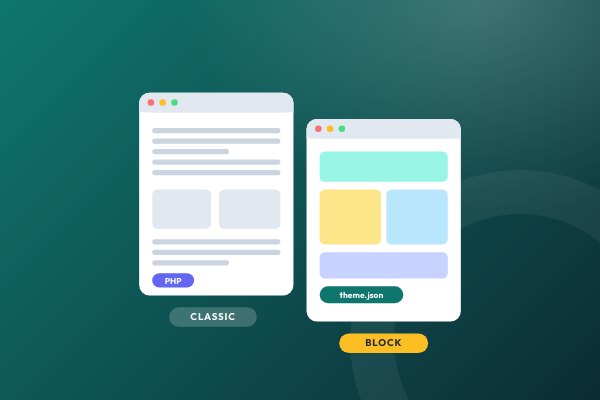
Find out whether the theme is a block theme, a classic theme or something in between (see our guide to block themes versus classic themes). That decides where you change your design and how much you can do without a plugin. Check that it works with the block editor and offers patterns you would actually use, and that it supports child themes if you expect to add custom code, so your changes survive theme updates.
Step 6: Check accessibility and mobile
Many sites get a large share of their visits from phones, so open the demo on a real phone, not just a narrowed browser window. Tap the menu, scroll an article, fill in a form. Then look for the Accessibility ready tag in the directory. It signals that the theme has met an additional set of accessibility requirements, which means better contrast, keyboard navigation and screen-reader support for your visitors.
Step 7: Understand free versus premium
Many themes follow a free-plus-paid model: a free version in the directory and a paid version that adds extra layouts, header builders or demo imports. That is a fair business model, but read carefully what is in the free version before you fall for a demo, because some demo pages are built with paid features. Also check what happens at renewal: some paid plans renew at a higher price, and some stop receiving updates if you do not renew.
Step 8: Test with your own content
The final test is the one that no demo can do for you. Install the theme on a test copy of your site (or use Live Preview from the Themes screen), and check:
- Your longest article, with images, headings, lists and a table.
- Your home page, with real titles and a real logo.
- The search results page and a 404 page.
- A page with a form, if you use one.
- Everything on a phone.
Common mistakes to avoid
- Choosing on looks alone. Demo content is hand-picked. Judge the theme on structure, speed and editing experience.
- Picking a heavyweight for a simple site. A multipurpose theme with fifty demos is a lot of code for a five-page blog.
- Locking your content into theme shortcodes. If your articles are full of theme-specific shortcodes, switching later will leave raw bracket text everywhere. Prefer standard blocks.
- Installing several themes "to try". Delete the ones you do not use; inactive themes still need updates, and old code is an unnecessary risk.
- Changing themes too often. Each switch means rebuilding menus, widgets and customizations. Choose carefully once, then improve the content.
The bottom line
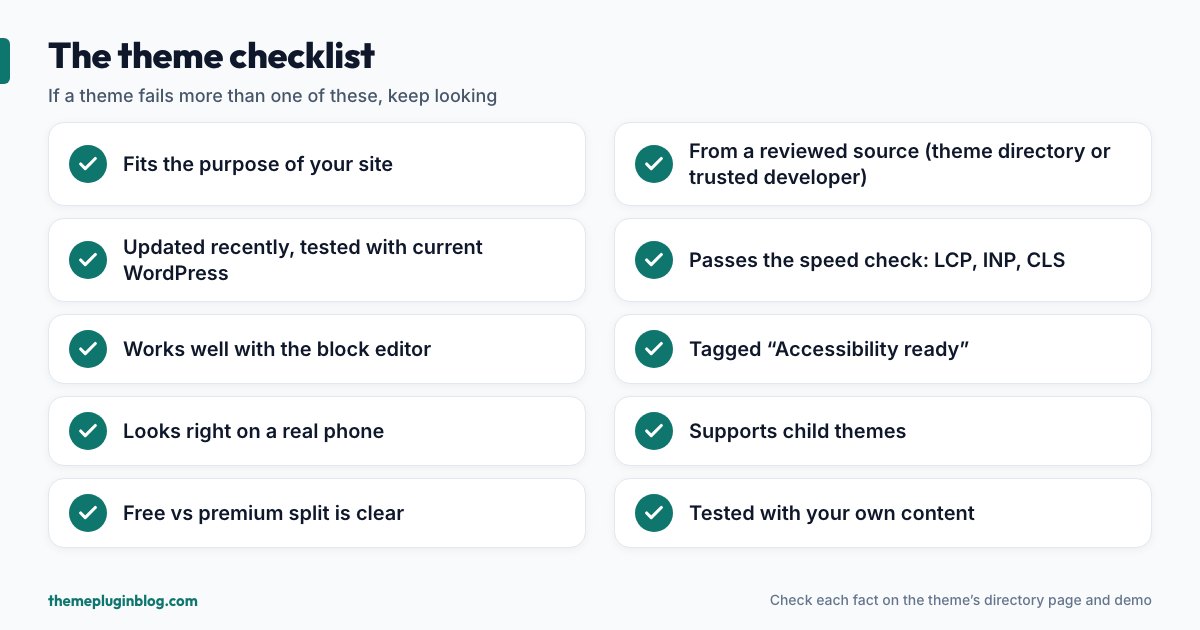
A good theme is not the prettiest demo; it is the one that matches your purpose, comes from a source you can trust, is kept up to date, loads fast on a phone, and is easy for you to edit. Check the facts on its listing, test the demo for speed, try it on your own content, and you will avoid most of the regret that comes with a hasty choice.
Sources
Directory figures (installs, ratings, update dates) come from the WordPress.org theme API on 5 November 2026 and change over time.