Every WordPress owner eventually faces the same dilemma: an update notice appears, and you are not sure whether clicking it will fix a security hole or break your site. Both fears are reasonable. Skip updates and you leave known holes open; click without thinking and one incompatible plugin can take a page, or the whole site, down.
The answer is not to avoid updates but to make them boring. This guide gives you a routine you can repeat in about fifteen minutes a week, explains the safety nets WordPress has built in (and where they stop), and tells you what to do on the day something does go wrong.
Why you cannot just ignore updates
Updates are mostly security fixes. The official WordPress hardening guide is direct about it: run the latest version of WordPress, keep your plugins updated, and delete any plugin you are not using. It also notes that older WordPress versions no longer receive security updates.
The numbers explain the urgency. Patchstack's State of WordPress Security in 2026 report counted 11,334 new vulnerabilities in the WordPress ecosystem in 2025, 91% of them in plugins and 9% in themes. For the vulnerabilities that attackers actually targeted heavily, the report puts the weighted median time to first mass exploitation at five hours, and says about half of the high-impact vulnerabilities were exploited within 24 hours. It also found that 46% of vulnerabilities had no developer fix by the time they were publicly disclosed. The practical lesson: when a plugin ships a security update, applying it quickly matters, and a plugin whose author is not shipping fixes is a risk in itself.
The safety nets WordPress gives you, and their limits
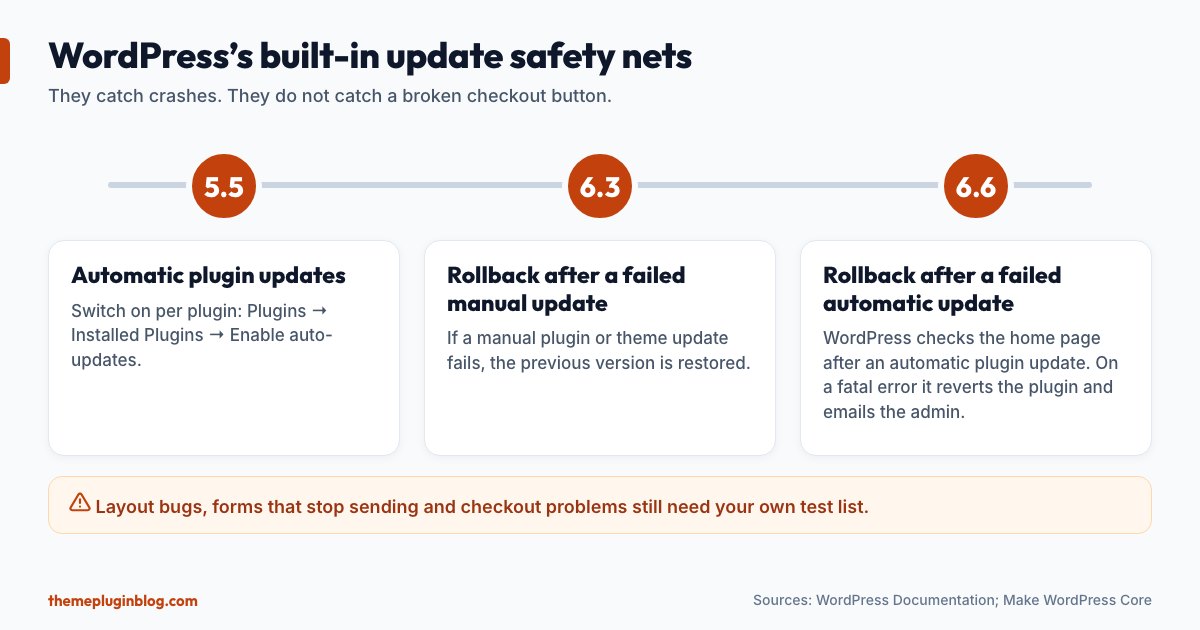
- Automatic updates for plugins (WordPress 5.5). You can switch auto-updates on plugin by plugin from Plugins → Installed Plugins, using the "Enable auto-updates" link in the Automatic Updates column.
- Rollback after a failed manual update (WordPress 6.3). WordPress core developers list "rollback for plugin/theme update failures when updating manually" as a feature added in 6.3: if the update itself fails, the previous version is restored.
- Rollback after a failed automatic plugin update (WordPress 6.6). After an automatic plugin update, WordPress makes a loopback request to your home page. If that request returns an error, it assumes a PHP fatal error, reverts the plugin to its previous version, logs what happened and emails the site's administration address. The design document adds a detail worth knowing: if loopback requests do not work on your server at all, WordPress treats that as a fatal error and reverts the update.
These nets are valuable, but notice what they do not do. They detect crashes. They do not notice a checkout button that stopped working, a contact form that sends nothing, a layout that fell apart on phones, or a feature that quietly disappeared. Only your own testing finds those.
The safe-update routine
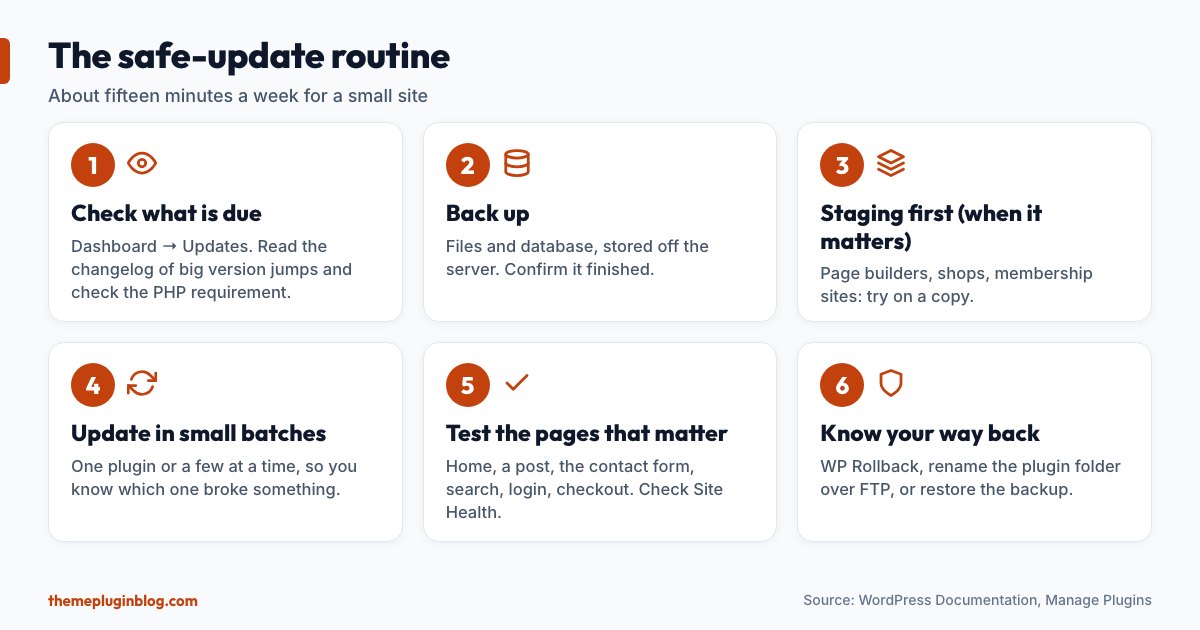
Step 1: Look at what is due
WordPress notifies you under Dashboard → Updates, and the Plugins page marks plugins with a "There is a new version" line. Before you click anything, glance at what is waiting. For anything that is a big jump in version, open the plugin's page on WordPress.org and read the Changelog tab. Many plugins use version numbers so that a change from 2.4 to 3.0 is bigger than 2.4.1 to 2.4.2, though that is a convention, not a rule.
Also check the requirements. Updates sometimes raise the minimum PHP version. For instance, the current Contact Form 7 release lists PHP 8.3 as a requirement on WordPress.org (checked 5 November 2026). If your host runs an older PHP, WordPress will not offer that update, which is a sign to plan a PHP upgrade, not a reason to ignore it forever.
Step 2: Back up
The official plugin documentation says it plainly: always make sure you have a current backup before updating plugins, because sometimes problems can happen during the update. Take a fresh backup of the files and the database, stored somewhere other than the server you are updating. If your host or a backup plugin makes one automatically before updates, confirm that it actually completed.
Step 3: Try it on a staging copy (when it matters)
A staging site is a private copy of your site where you can update, click around and break things safely. Many hosts include one-click staging. Use it for major version updates, for page builders, for e-commerce or membership plugins, and for any site that earns money. For a small personal blog, a backup and a careful check on the live site may be enough.
Step 4: Update, in small batches
Update one plugin at a time, or a few at a time, rather than selecting everything. If something breaks, you will know which update did it. The documentation describes bulk updating from the Plugins page: click the Update Available link, tick the plugins, choose Update from the Bulk Actions menu, and click Apply. It also recommends a quick review of all the plugins before bulk-updating. A common order is WordPress core first (if a version is due), then plugins, then the theme.
Step 5: Test the pages that matter
Make a short, fixed test list and use it every time:
- Home page and one recent post, on desktop and on a phone.
- Your contact form (send yourself a message).
- Search, and the menu.
- If you sell things: add to cart, checkout (or at least reach payment), and a login.
- Look in Tools → Site Health for new warnings, and, if you can, at your server's PHP error log.
Step 6: Know your way back
If something broke, you have three options, from lightest to heaviest:
- Roll back one plugin. The WP Rollback plugin (more than 200,000 active installs) lets you roll any plugin or theme from WordPress.org back to a previous version, working "just like the plugin updater", without downloading and uploading files by hand.
- Deactivate the culprit by hand. If the dashboard is not reachable, use FTP or your host's file manager, open
wp-content/plugins/and rename the problem plugin's folder (for example add-offto the end). WordPress then treats it as missing and the site usually comes back. - Restore the backup you took in step 2. It is the reason that step exists.
Which updates to automate
Auto-updates remove the "I forgot" problem, which causes more hacks than bad updates do. A balanced approach:
- Automate small, well-maintained, low-risk plugins (a spam filter, an SMTP plugin, a redirect manager) and security plugins, ideally with a recent backup scheme in place.
- Update by hand complex plugins that change how your site looks or earns money: page builders, e-commerce, membership and payment plugins, and anything customised. Do these on staging first when you can.
- Do not turn on auto-updates for plugins that no longer have an active author. Replace them instead.
When an update fails halfway
Occasionally an update stalls and your site shows "Briefly unavailable for scheduled maintenance. Check back in a minute." and never recovers. This happens when WordPress writes a temporary maintenance file and the update is interrupted before it removes it. Connect with FTP or your file manager, open the root folder of your site (where wp-config.php lives) and delete the hidden file named .maintenance. Then run the update again, or restore from your backup if the files are incomplete.
A weekly rhythm that works
- Once a week (10–15 minutes): check Dashboard → Updates, apply the safe ones, run your test list.
- Immediately: apply updates labelled as security fixes for plugins you use, after a quick backup.
- Once a quarter: remove plugins and themes you no longer use, review which plugins have not been updated by their author for a long time, and check that your backups can really be restored.
The bottom line
Updates are a security routine, and routines beat heroics. Back up first, update in small batches, test the five pages that matter, and know in advance how you will go back. WordPress's rollback features catch crashes, but only your test list catches a broken checkout. With that routine, an update notice stops being a source of anxiety and becomes a weekly chore of a few minutes.
Sources
Checked on 5 November 2026. Statistics are from Patchstack's published report; rollback details are from the WordPress core team's design notes and the plugin documentation.