Your WordPress login page is the front door of your site, and it is the one door every attacker can find, because on a default install it sits at the same address everywhere. Automated scripts try common usernames and leaked passwords against thousands of sites an hour. You do not need to be a target for that to matter: you only need to be on the list.
The fix is not complicated or expensive. A strong, unique password plus a second sign-in step (two-factor authentication), a limit on guessing, and a tidy list of users will stop the large majority of login attacks. This guide shows you how to set each of them up, which free plugins can help (with real figures from WordPress.org), and how to avoid locking yourself out.
What the official guidance says
The WordPress hardening guide in the Advanced Administration Handbook lists the basics for protecting logins:
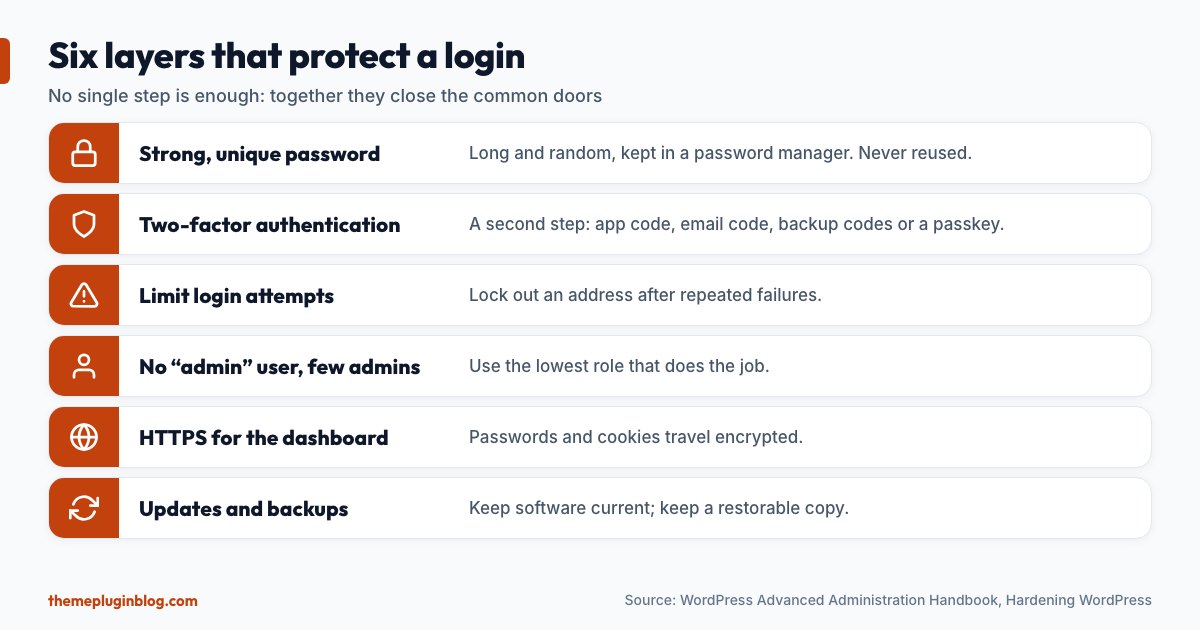
- Use strong passwords. Avoid passwords based on your name, username, company or site name, dictionary words, and short, numeric-only or letters-only passwords. WordPress's built-in strength meter helps when you set one.
- Enable two-step authentication. The guide recommends it, and it is your main defence against brute-force attacks and password leaks.
- Do not use "admin" or "webmaster" as an administrator username, since they are the first names attackers try.
- Require HTTPS for the administration screens, so passwords and session cookies travel encrypted.
- Disable the built-in file editor by adding
define( 'DISALLOW_FILE_EDIT', true );towp-config.php, so an intruder who reaches your dashboard cannot rewrite theme and plugin code from there. The guide notes this does not stop attackers uploading malicious files, so it is one layer among several. - Optionally add server-level password protection (such as BasicAuth) in front of
/wp-admin/as a second layer, with a warning that it can break features such asadmin-ajax.phpif applied carelessly.
Layer 1: a strong, unique password
The most common way into a WordPress site is a password that was reused from another service and has already leaked. Use a long, random password that you use nowhere else, and let a password manager remember it. Do this for every account that can publish or edit: administrators, editors and authors. Also check Users in your dashboard and delete accounts that nobody uses; every extra account is a possible way in.
Layer 2: two-factor authentication
Two-factor authentication (2FA) asks for something you have (usually a code from your phone) as well as something you know (your password). Even if a password leaks, an attacker cannot sign in without the second factor. WordPress core does not include 2FA, so you add it with a plugin. Four well-known free options:
| Plugin | Active installs | What its listing says |
|---|---|---|
| Two Factor | 100,000+ | Authenticator app (TOTP), email codes, backup codes; each user sets up their own |
| WP 2FA | 100,000+ | Authenticator app and email codes, passkeys, 16-digit backup codes, wizard setup, policies to enforce 2FA by role with grace periods |
| Wordfence | 5,000,000+ | Part of its security suite: 2FA with TOTP apps, passkeys, and a login-page CAPTCHA |
| Limit Login Attempts Reloaded | 1,000,000+ | Brute-force protection, 2FA, login firewall, bot protection and IP blocking |
Which second factor?
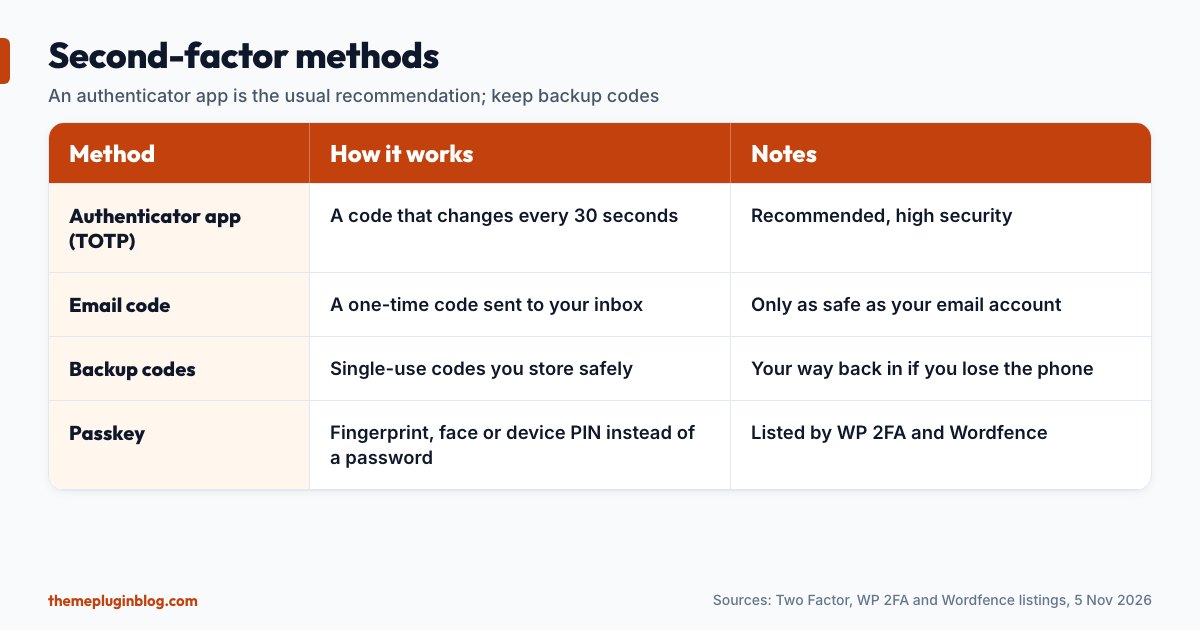
- Authenticator app (TOTP): an app such as Google Authenticator, Authy or a password manager generates a code that changes every 30 seconds. The Two Factor plugin describes it as the recommended, high-security option.
- Email codes: a one-time code arrives by email. Easier, but only as safe as your email account. Better than nothing, weaker than an app.
- Backup codes: single-use codes you save somewhere safe, for emergencies such as a lost phone.
- Passkeys: sign in with a fingerprint, face or device PIN instead of a password. WP 2FA and Wordfence both list passkey support.
How to set it up with the Two Factor plugin
The Two Factor plugin is a good example because it is simple. Its listing describes the steps:
- Install and activate the plugin (Plugins → Add New).
- Go to Users → Your Profile and scroll to Two-Factor Options.
- Enable the methods you want and follow each method's setup (for the app method, scan the QR code).
- Choose a primary method and click Update Profile.
- Generate and store backup codes.
Important: each user configures their own 2FA, though an administrator can set it up for another user by editing that user's profile. Under Settings → Two-Factor, an admin can disable providers site-wide. Do the setup for every administrator and editor, not just yourself. Plugins such as WP 2FA go further and let you require 2FA for certain roles, with a grace period so people have time to set it up.
Layer 3: limit guessing
Attackers rely on trying many passwords. A login limiter locks an address out after several failed attempts. Limit Login Attempts Reloaded (more than a million installs, rated 96 out of 100 from nearly 1,500 ratings) is built for this and also lists a login firewall and IP blocking, and security suites such as All-In-One Security (which locks users out after a configurable number of failed attempts) and Kadence Security (brute-force protection) cover this too (see our security plugin comparison). Use one tool for this, not several, or they will lock each other's rules in confusing ways.
Layer 4: fewer, safer accounts
- Rename or replace the "admin" account. Create a new administrator with a different username and a strong password, sign in with it, then delete the old "admin" user and assign its content to the new one. (The handbook also shows a database command for renaming; use the dashboard method unless you are comfortable with databases.)
- Use the lowest role that does the job. A writer needs Author or Editor, not Administrator.
- Keep a second administrator account you can use if one is locked out, stored securely.
Layer 5: HTTPS, updates and backups
Make sure your whole site, including the login and dashboard, loads over HTTPS (most hosts offer this free). Keep WordPress, plugins and themes updated: Patchstack's 2026 report found broken access control, where code fails to check who is allowed to do something, was the most exploited type of vulnerability, and a login is not the only door. Our safe update routine covers this. Finally, keep tested backups (see our backup plugin guide) so that even a successful attack is recoverable.
How to avoid locking yourself out
- Save backup codes somewhere that is not your phone: a password manager or a printout in a safe place.
- Keep a second administrator with its own 2FA.
- Know the emergency exit. If 2FA or a login-limit plugin blocks you, connect with SFTP or your host's file manager, open
wp-content/plugins/and rename that plugin's folder (for example add-off). WordPress then treats it as missing and the normal login returns. Remember to fix the cause afterwards. - Test in a private window before you close your current session after changing login settings.
- Do not lock yourself behind your own IP. If you allow-list addresses, remember that home connections change.
The bottom line
You do not need exotic tools to secure a WordPress login. A strong unique password, two-factor authentication, a limit on guessing, no "admin" user and few administrators, HTTPS, and a habit of updating and backing up will stop most attacks. Set up the second factor for every privileged user, keep your backup codes safe, and test your emergency exit before you need it.
Sources
Checked on 5 November 2026. Plugin figures are from the WordPress.org plugin API and change over time; features are paraphrased from each plugin's own listing.