
Images are usually the heaviest thing on a web page, and a single oversized photo is a common reason a WordPress site feels slow. Image optimisation plugins promise to fix that automatically: they shrink files, convert them to modern formats, and sometimes serve them from a fast network. They can make a real difference, especially on a site with a large media library. They can also be set up in ways that quietly make things worse.
This guide explains what these plugins actually do, compares six well-known ones using their WordPress.org listings (checked on 5 November 2026), and shows how to choose and set one up safely. We have not benchmarked them on a live site, so we do not rank them by speed; we tell you what each listing claims, where the claims overlap and how to check the results on your own pages.
What image optimisation really means
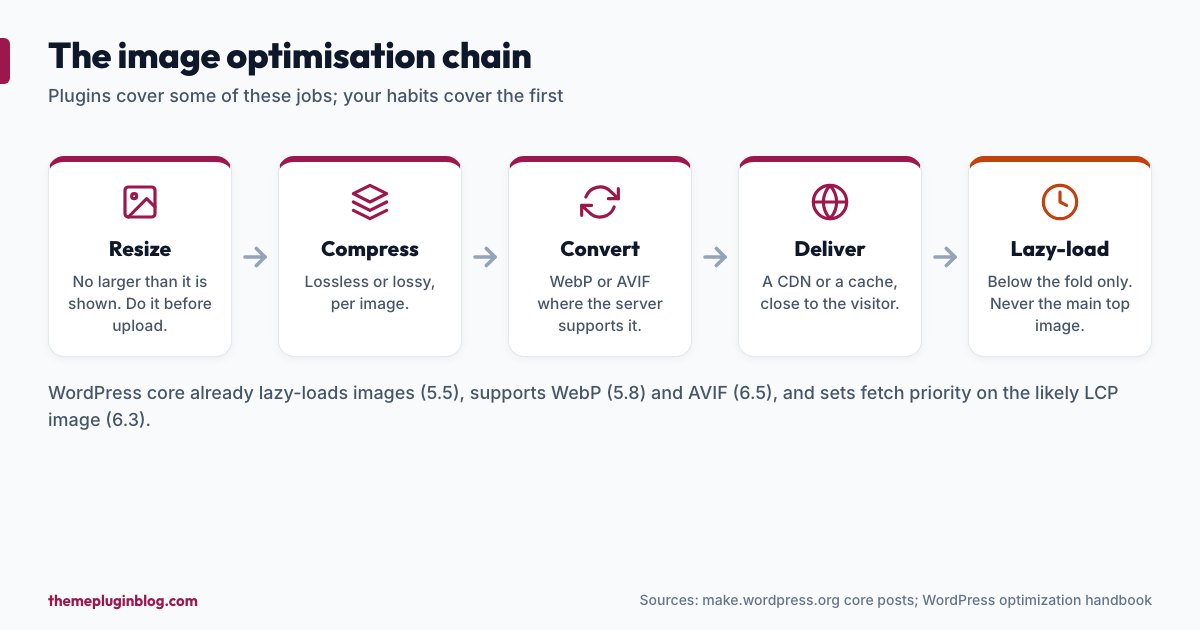
"Optimising images" is several different jobs, and plugins differ in which they do:
- Resizing: making sure an image is no larger than it needs to be. A photo straight from a camera can be thousands of pixels wide when your page displays it at 800.
- Compression: shrinking the file. Lossless compression removes redundant data without changing how the image looks; lossy compression discards some detail for a much smaller file. The WordPress documentation advises choosing the right format and compression for each image.
- Format conversion: serving WebP or AVIF, which are typically smaller than JPEG and PNG for the same visual quality. The documentation specifically points to WebP as smaller than older formats.
- Lazy loading: loading images only as the visitor scrolls near them.
- Delivery: serving images through a content delivery network (CDN) with copies near the visitor.
What WordPress already does
Before you add a plugin, know what core handles, because some plugins duplicate it. WordPress has lazy-loaded images with width and height attributes by default since version 5.5. It supports WebP uploads since 5.8, and AVIF since 6.5 when your server's image libraries can handle the format. Since 6.3, core also adds fetchpriority="high" to the image most likely to be the Largest Contentful Paint element and avoids lazy-loading that same image. What core does not do is shrink an oversized original or compress it aggressively, which is where these plugins help. Our speed guide shows where image work fits among the other fixes.
The numbers at a glance
| Plugin | Installs | Rating | Last updated |
|---|---|---|---|
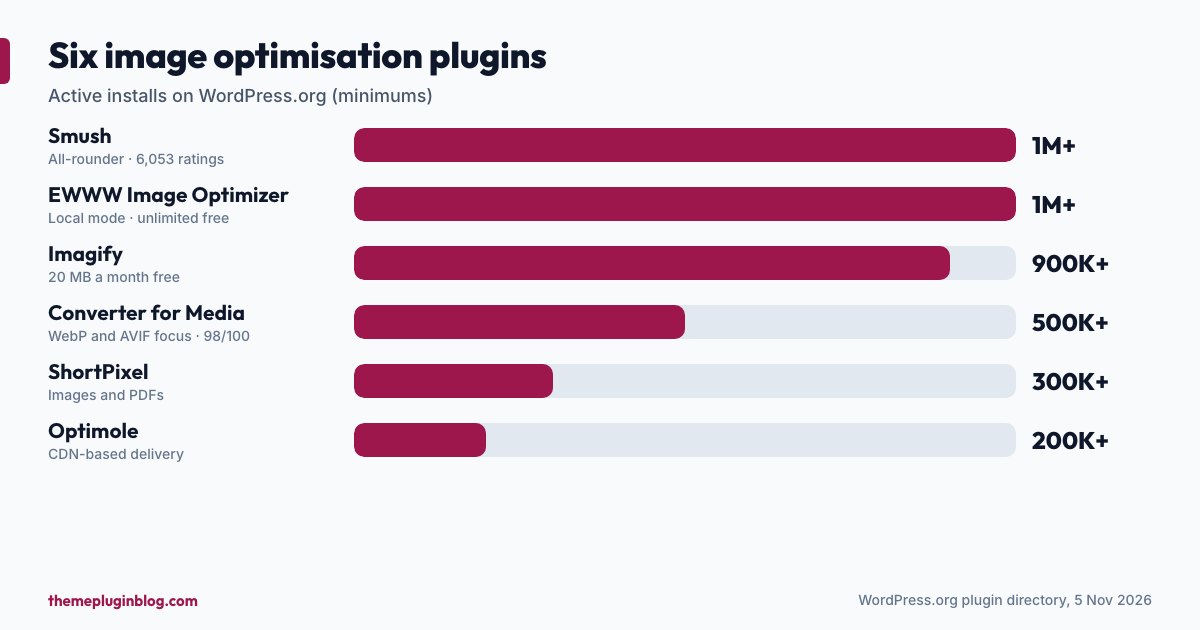
| Smush | 1,000,000+ | 96/100 (6,053 ratings) | 2 November 2026 |
| EWWW Image Optimizer | 1,000,000+ | 96/100 (1,844 ratings) | 29 October 2026 |
| Imagify | 900,000+ | 86/100 (1,657 ratings) | 7 September 2026 |
| Converter for Media | 500,000+ | 98/100 (1,108 ratings) | 5 November 2026 |
| ShortPixel | 300,000+ | 90/100 (830 ratings) | 14 October 2026 |
| Optimole | 200,000+ | 94/100 (640 ratings) | 4 November 2026 |
The plugins, one by one
Smush: the all-rounder
Smush has more than a million installs and the most ratings of the six (6,053). Its listing says it compresses images with both lossless and lossy compression, enables lazy loading, and serves modern formats such as WebP and AVIF, with a setup that "works out of the box". It also mentions a CDN. A sensible default for people who want one plugin to do most things with little configuration. Check which features (particularly the CDN and some conversion options) are in the free plan.
EWWW Image Optimizer: local processing and detail
EWWW's listing says you get unlimited image optimisation for free, including a local mode that works on most hosts (the images are processed on your own server rather than sent elsewhere), lossless optimisation for JPG, PNG, GIF and SVG (it quotes 8% average savings), and WebP conversion (60% average savings). It also offers resizing at upload or in bulk, lazy loading with properly sized placeholders to avoid layout shift, local backups of original images, and an "Image Detective" to find badly scaled images and better optimise LCP images. AVIF quality settings are listed as a premium feature. It is a strong pick if you prefer to keep processing on your own server or want fine control.
Imagify: easiest setup, with a monthly free allowance
Imagify's listing describes one-click optimisation: resize, compress and convert to WebP or AVIF from the dashboard, with up to 20 MB of images optimised each month for free. That allowance is generous for a small blog and tight for a big media library, so estimate your library's size before you rely on the free tier. Its rating (86 out of 100) is the lowest of the six, and its last update was in September, so check recent reviews.
Converter for Media: conversion focus
This plugin concentrates on serving WebP and AVIF images. Its listing says replacing JPEG, PNG and GIF files with WebP and AVIF formats can save over half the page weight without losing quality, and that after installing, you can optimise your whole Media Library with one click. It has 500,000+ installs and a 98 out of 100 rating from 1,108 ratings, and was updated on the day we checked. A good fit if format conversion is your main need and you want something simple.
ShortPixel: compression, conversion and PDFs
ShortPixel advertises automatic compression, WebP and AVIF conversion and bulk optimisation, and says it optimises PDFs too and can resize large uploads. Its listing also highlights new AI-assisted image file renaming. It has 300,000+ installs and a 90 out of 100 rating. As with other cloud-based services, read the plan and limits on its site before you commit a large library.
Optimole: a CDN-based approach
Optimole takes a different route: it compresses and resizes images and delivers them through a CDN with locations around the world (the listing says 450+), with WebP and AVIF conversion, lazy loading and "ML-powered optimization", and says it needs no configuration. If your images are served from a CDN, your server does less work. The trade-off is that your images then depend on a third-party service, so read its terms and what happens if you stop using it.
How to choose
- "One plugin that does most of it": Smush.
- "I want processing on my own server and detailed controls": EWWW Image Optimizer.
- "The simplest setup, and my library is small": Imagify.
- "I mostly want WebP and AVIF": Converter for Media.
- "I have lots of images and want a service to handle them, PDFs included": ShortPixel.
- "I want images delivered by a CDN": Optimole, or a CDN your host or caching plugin already provides.
How to set one up safely
- Back up your site and media library first. Bulk optimisation changes many files. Choose a plugin or setting that keeps your originals, such as EWWW's local backups.
- Measure first. Test two or three key pages with PageSpeed Insights on mobile so you can compare. The Core Web Vitals targets are LCP of 2.5 seconds or less, INP of 200 milliseconds or less and CLS of 0.1 or less.
- Resize at the source. Resize photos to a sensible width before uploading, and set a maximum image size in the plugin.
- Turn on one thing at a time: compression first, then WebP or AVIF, then lazy loading, testing after each.
- Do not double up. If a plugin offers lazy loading, check whether core's lazy loading, your theme or your caching plugin already does it. Two systems doing the same job can cause images to appear late or not at all.
- Never lazy-load your main top image. It is usually the Largest Contentful Paint element, and delaying it makes your loading score worse. Core avoids this by default; some plugin settings can override it.
- Check the result in a private window, signed out, on a phone and a desktop: do images look sharp, and do they load?
- Run one optimisation plugin at a time. Two will fight over the same files.
Common problems
- Images look blurry or blocky. The compression is too aggressive. Switch from lossy to lossless or raise the quality setting, and re-optimise from the originals.
- WebP images do not appear. Server or cache rules can interfere. Clear your cache and CDN and ask your host if needed.
- The media library is huge and the free allowance runs out. Pick a plugin with unlimited local processing or estimate cost before bulk-processing.
- Layout jumps as images load. Make sure images have width and height set; this is the Cumulative Layout Shift problem.
- The score improved but the pages are not faster. The images may not have been your bottleneck. Check with a waterfall view and with Query Monitor on slow pages.
The bottom line
Good images are mostly good habits: upload at a sensible size, compress, use modern formats and let core handle lazy loading. An optimisation plugin automates the compressing and converting, especially for an existing library. Choose one that fits how you work, keep your originals, turn features on one at a time, never lazy-load the main image, and measure before and after so you know it helped.
Sources
Plugin figures are from the WordPress.org plugin API on 5 November 2026; descriptions are paraphrased from each plugin's own listing and savings figures are the vendors' own claims. Core image-feature versions are from make.wordpress.org core posts.