
Backups are the least exciting part of running a website and the part you will be most grateful for on a bad day. A failed update, a hacked site, a deleted page, a plugin that corrupts the database, or a hosting problem can each take a site offline. With a recent, tested backup, any of them is an inconvenience. Without one, it can be the end of the project.
This guide explains what a proper WordPress backup contains, how the main backup plugins differ, and how to choose. It compares eight well-known plugins using their WordPress.org listings (checked on 5 November 2026). We have not run restore tests on every one of them, so we describe what each listing says and tell you how to test a restore yourself.
What a complete backup includes
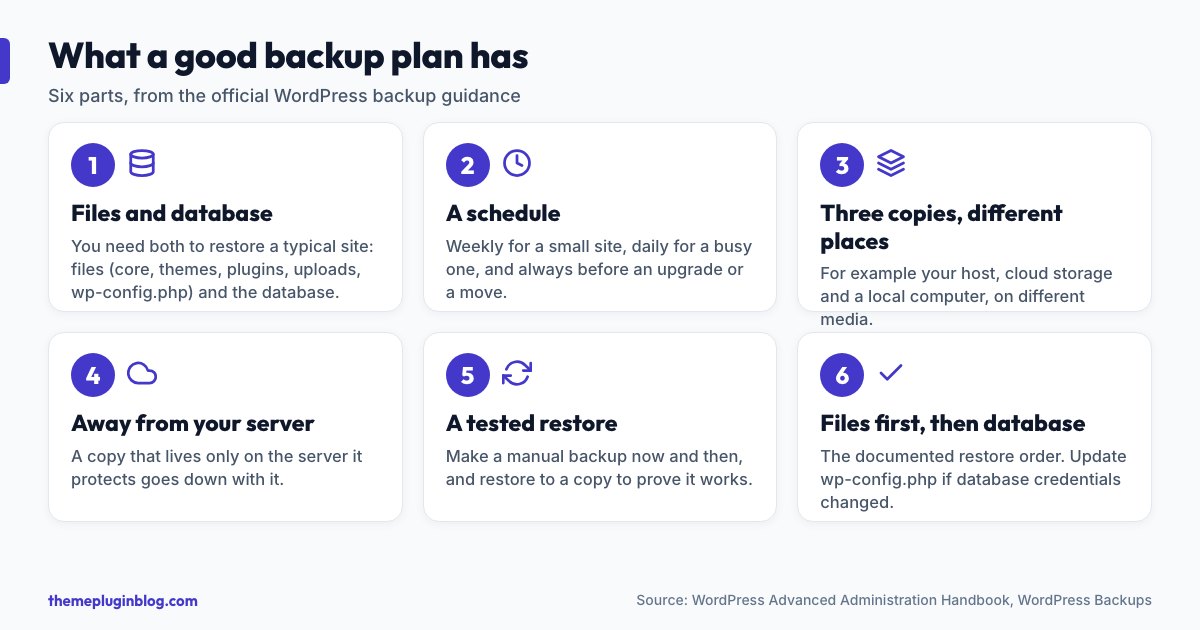
The WordPress documentation is clear that a typical site has two parts, and that "you need both to be able to fully restore" it:
- The database holds your posts, pages, comments, settings and user accounts. It lives in MySQL or MariaDB, separately from your files.
- The files include WordPress core, your themes and plugins, your uploads (images and documents) and configuration files such as
wp-config.phpand.htaccess.
Backing up only the files does not back up the database, and the reverse. Any plugin you consider should cover both, or you should know exactly which part it leaves out.
How often, and where to keep the copies
The documentation suggests a weekly backup for a small site with few new posts and a daily one for a busy site, plus a fresh backup before every upgrade or move. It also recommends keeping at least three recent copies in different places and on different media: for example your host's server, cloud storage and a local computer. One copy stored on the same server as the site is not much of a safety net, because anything that takes down the server takes the backup with it.
The plugins at a glance
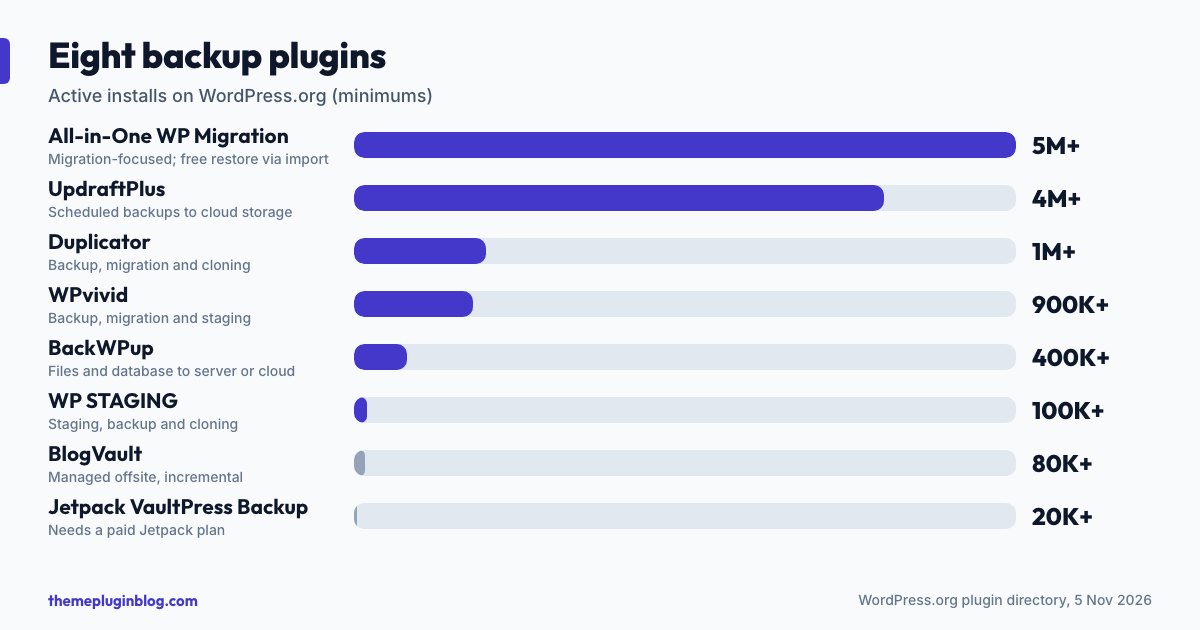
| Plugin | Active installs | Rating | Last updated |
|---|---|---|---|
| All-in-One WP Migration | 5,000,000+ | 90/100 (7,676 ratings) | 27 October 2026 |
| UpdraftPlus | 4,000,000+ | 96/100 (8,712 ratings) | 26 October 2026 |
| Duplicator | 1,000,000+ | 98/100 (4,940 ratings) | 3 November 2026 |
| WPvivid | 900,000+ | 98/100 (1,571 ratings) | 30 October 2026 |
| BackWPup | 400,000+ | 80/100 (1,323 ratings) | 14 October 2026 |
| WP STAGING | 100,000+ | 96/100 (2,471 ratings) | 28 October 2026 |
| BlogVault | 80,000+ | 92/100 (332 ratings) | 30 October 2026 |
| Jetpack VaultPress Backup | 20,000+ | 90/100 (35 ratings) | 4 November 2026 |
The plugins, one by one
UpdraftPlus: the scheduled-backup standard
Described as the highest-ranking and most popular scheduled backup and migration plugin, UpdraftPlus sends backups to the storage of your choice, including Dropbox, Google Drive, Amazon S3 and FTP, and restores them from the dashboard. Its combination of schedules, remote storage and a high rating from nearly 9,000 reviewers makes it a common first choice for a plain "back up on a schedule" need.
All-in-One WP Migration: the most installed, built for moving sites
With more than 5 million installs, this plugin is the biggest of the group, and as its name says, it is strongest at migration: exporting a whole site to a file and importing it elsewhere. Its listing is plain about free versus paid. The free plugin backs up and exports sites of any size; to restore for free you download the backup file and import it on the Import screen, but your host decides how large a file you can upload, so a very large backup may not go through. A paid extension adds one-click restore from the Backups page and uploads that get around host size limits. Read that before you rely on it for a large site.
Duplicator: backup and migration with a generous free tier
Duplicator packages your site's files and database for backup, migration or cloning. Its listing says backups of any size, encrypted archives, one-click restore and cloud storage are part of the free plugin, while Duplicator Pro adds scheduled backups, cloud storage integrations, multisite support and staging sites. Because the free and Pro descriptions overlap on cloud storage, check which services you need before assuming they are in the free version. It has a very high rating (98 out of 100 from nearly 5,000 ratings).
WPvivid: backup, migration and staging
WPvivid lists backup, migration and staging (a staging site on a subdirectory for safely testing plugins, themes and changes) as basic features. With 900,000+ installs and a 98 out of 100 rating, it is a strong free option for people who want all three in one plugin. A separate WPvivid Pro exists.
BackWPup: files and database to the server or the cloud
BackWPup says it automatically backs up the database and files, stores them on your server or in the cloud, and helps you restore. It is long established, with 400,000+ installs. Its rating (80 out of 100) is the lowest of the group, so read recent reviews to see whether the issues people report apply to your host.
WP STAGING: staging first, backups as well
WP STAGING began as a staging plugin and now describes itself as an all-in-one backup, restore, staging, cloning and migration tool. If your main need is to test updates on a copy of your site before touching the live one, it is worth a look.
BlogVault: offsite incremental backups as a service
BlogVault stores backups on its own cloud infrastructure, takes them incrementally (only changes after the first copy), and includes built-in staging and migration. Because backups live offsite, they survive even if your own server goes down. It is a managed service rather than a free plugin, so check its pricing and plans.
Jetpack VaultPress Backup: cloud backups with one-click restore
This plugin offers cloud-based backups and one-click restores without installing the full Jetpack plugin. Its listing is explicit that you need a paid Jetpack plan that includes Backup. It has the smallest install count here (20,000+) because it is paid, and a few ratings only, so judge it on the vendor's own documentation.
How to choose
- "Back up on a schedule to a cloud account I already have": UpdraftPlus, or BackWPup.
- "I need to move my site to a new host": All-in-One WP Migration or Duplicator.
- "I want backup, staging and migration in one free plugin": WPvivid or WP STAGING.
- "I want someone else to store and monitor the backups": a managed service such as BlogVault, or Jetpack VaultPress Backup.
- "My host already runs daily backups": keep them, and still add your own copy somewhere else.
Test your restore
The documentation recommends making a manual backup once in a while to confirm your automatic ones really work, and the same logic applies to restores. A backup you have never restored is a hope, not a plan. Once a quarter, restore your latest backup to a staging or local copy and check that the home page, a post, your images and a login all work. For a manual restore, the documentation's order is files first, then the database; if you changed database credentials, update wp-config.php to match.
Practical rules
- Take a backup before every update (see our safe update routine).
- Keep at least one copy away from your hosting account.
- Protect backup files: they contain your database, so treat them like passwords. Do not leave downloadable backup files in a public web folder.
- Run only one backup plugin at a time unless you have a reason; two on a small server can slow it or collide on schedules.
- Set an alert for failed backups, if the plugin offers one, and check the log occasionally.
The bottom line
The best backup plugin is the one that runs on a schedule, stores copies away from your server, covers files and database, and has been proved to restore. For most small sites a free scheduled plugin sending copies to a cloud account is plenty. Choose a migration-focused plugin when you are moving, a staging-capable one when you test updates, and a managed service when you do not want to think about it. Then restore a copy to check. That one test is what turns a backup into a safety net.
Sources
Plugin figures are from the WordPress.org plugin API on 5 November 2026; install counts are minimums. Feature descriptions are paraphrased from each plugin's own listing and change over time.