The WordPress plugin directory holds tens of thousands of plugins, and almost every beginner's guide ends with a list of "must-have" ones that is thirty items long. A new site does not need thirty plugins. It needs a handful that cover the jobs WordPress does not do well on its own, and a clear habit of saying no to the rest.
This guide walks through the jobs worth covering on day one, gives well-known examples for each (with real numbers from WordPress.org), and explains how to choose, install and keep plugins without turning your site into a maintenance burden.
Why fewer plugins is a safety decision, not just a speed decision
Every plugin is extra code running on your site, and code has bugs. According to the State of WordPress Security in 2026 report from Patchstack, 11,334 new vulnerabilities were found in the WordPress ecosystem during 2025, 42% more than the year before. Of those, 91% were in plugins and 9% in themes. WordPress core itself had only six, all low priority. In other words, almost all of the risk sits in the add-ons, and each one you install is another thing you must keep updated.
That does not mean plugins are bad: the official documentation describes them as the way to extend WordPress without bloating the core software. It means every plugin should earn its place. A good rule: if you cannot say in one sentence what a plugin does for you, remove it.
The jobs worth covering on day one
1. Backups
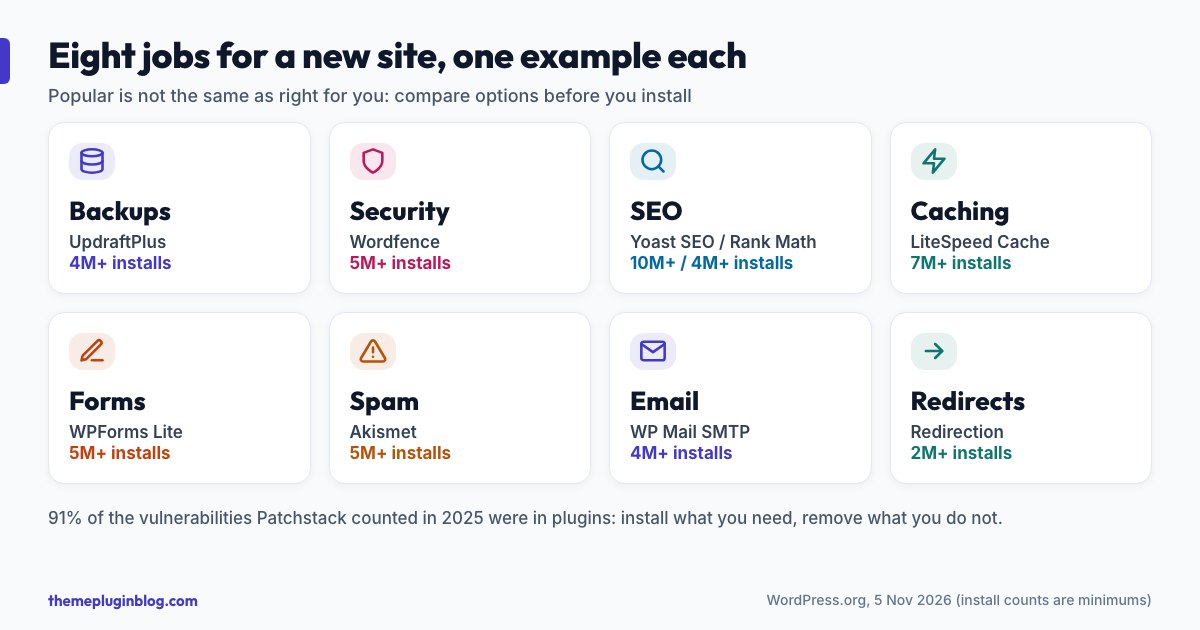
This is the one plugin type nobody regrets. A backup is what saves you after a failed update, a hacked site, a deleted page or a hosting problem. UpdraftPlus is the most widely used scheduled backup and migration plugin in the directory (more than 4 million active installs), and it can send backups to storage such as Dropbox, Google Drive, Amazon S3 or an FTP server. Whatever you use, the rules are the same: back up both files and the database, store copies somewhere other than your web host, and test a restore at least once. A backup you have never restored is a hope, not a plan. Many hosts also offer their own daily backups; that is useful, but treat it as a second copy rather than your only one.
2. Security
WordPress is secure out of the box when it is kept updated, but a security plugin adds a firewall, login protection and malware scanning. Well-known options include Wordfence (more than 5 million installs), All-In-One Security (more than 1 million) and Kadence Security, formerly known as iThemes and Solid Security (more than 700,000). Choose one and configure it properly; running two security plugins at once usually causes conflicts. We compare the main choices in our guide to the best WordPress security plugins.
3. SEO
An SEO plugin helps with titles and descriptions, XML sitemaps, canonical addresses and structured data. The two giants are Yoast SEO (more than 10 million installs) and Rank Math (more than 4 million). Both are free to start with and have paid tiers. Pick one, import settings if you are switching, and never run both at the same time. Our Yoast SEO vs Rank Math comparison helps you choose.
4. Caching and performance
A caching plugin stores ready-made versions of your pages so WordPress does not rebuild each one for every visitor. LiteSpeed Cache (more than 7 million installs), WP Super Cache, W3 Total Cache and WP Fastest Cache (each more than 900,000 or 1 million) are the best-known free choices. Some hosts already include server-level caching; if yours does, check before adding another layer. Our guide to caching plugins explained shows how the different layers fit together.
5. A form plugin (if you need one)
WordPress has no built-in contact form. If you need one, WPForms (the free "Lite" version has more than 5 million installs) and Contact Form 7 (more than 10 million) are the common choices. If you only need a way for people to reach you, an email link may be enough and one plugin less. Check each form plugin's required PHP version against your host before installing.
6. Spam protection
Once your site is public, spam comments and form submissions follow within days. Akismet (more than 5 million installs) checks comments and contact form submissions against a global spam database. It offers a free option for personal sites and paid plans for commercial ones, so confirm the current terms on its website. If you do not plan to allow comments at all, you can switch them off in Settings → Discussion and skip the plugin.
7. Reliable email delivery
By default, WordPress sends email through your web server, and those messages often land in spam or never arrive: password resets, form notifications, order emails. WP Mail SMTP (more than 4 million installs) reconfigures WordPress to send through a proper SMTP provider. If your site sends any important email, this is worth setting up on day one rather than after the first missed message.
8. Redirects and broken-link tracking
Sooner or later you will change a page address, and visitors (and search engines) will still follow the old one. Redirection (more than 2 million installs) manages 301 redirects and keeps track of 404 errors. If you use an SEO plugin that already includes a redirect manager, you do not need a separate one.
Useful extras, not essentials
- Really Simple Security (formerly Really Simple SSL, more than 3 million installs) helps with HTTPS setup, hardening and two-factor authentication. Many hosts now configure HTTPS for you, so check before adding it.
- Query Monitor (more than 200,000 installs) is a developer tool that shows slow database queries and PHP errors. It is invaluable for troubleshooting a slow page, and you can keep it deactivated until you need it.
- WP Rollback (more than 200,000 installs) lets you roll a plugin or theme from WordPress.org back to an earlier version if an update causes trouble.
What you probably do not need
- A plugin for every small feature. Many things (a simple social link, a footer note, a custom colour) are a block or a setting away.
- Two plugins doing the same job. Two SEO plugins, two caching plugins or two security plugins will conflict.
- Heavy page-builder or slider plugins when the block editor can do the job.
- Plugins you "might use later". Install when you need it, not before.
- Anything you cannot find in the official directory or a trusted developer's site. Never install "free" copies of paid plugins.
How to check a plugin before you install it
On Plugins → Add New in your dashboard, each plugin shows whether it is compatible with your version of WordPress. Click More Details and look at five things:
- Last updated. A plugin untouched for years may be abandoned. The official documentation warns that a plugin that has not been updated since the latest WordPress release may be incompatible, or its compatibility unknown.
- Tested up to. Compare it with your WordPress version. As of 5 November 2026 most of the plugins above list 7.1.4 as tested, the current release.
- Active installs and ratings. Read the rating together with the number of ratings, and skim the lowest reviews.
- Support forum. Look for answers from the author. A busy forum with replies is healthier than a silent one.
- Required PHP version. Check that it matches your host.
How to install, and how to remove cleanly
The simplest way is the built-in installer: go to Plugins → Add New, search by name, click Install Now, then Activate. If you have a zip file from a developer, use Upload Plugin at the top of the same screen. To remove a plugin, deactivate it first and then click Delete. Merely deactivating leaves the code on your server, and the official documentation recommends the deactivate-then-delete route for a safe uninstall.
Keeping plugins healthy
WordPress has been able to update plugins automatically since version 5.5, and you can turn that on per plugin from Plugins → Installed Plugins. Auto-updates are a good choice for well-maintained plugins, but pair them with backups, and keep a regular check of anything critical, such as your shop or your forms. Our guide to updating plugins and themes safely gives you a simple routine. Review your plugin list every few months and delete whatever you no longer use.
A sensible starter set
For a typical new blog, this is a reasonable day-one list: one backup plugin, one security plugin, one SEO plugin, one caching plugin (unless your host already caches pages), a form plugin only if you need a contact form, and an SMTP plugin if your site sends important email. That is about five or six plugins, and each has a clear job. You can add more as real needs appear, not because a list told you to.
Sources
Plugin names, versions and install counts come from the WordPress.org plugin API on 5 November 2026. Install counts are minimums and change over time. Naming a plugin here is not an endorsement; popular is not the same as right for your site.