
"Install a caching plugin" is the most repeated piece of WordPress speed advice, and also one of the most misunderstood. People install one, see a green score in a test, and never learn what it is doing or why a page occasionally shows old content. This guide explains what caching actually is, the different layers that exist, what the well-known caching plugins do, and how to avoid the usual traps.
Why WordPress needs caching at all
WordPress is a dynamic system. Each time someone visits a page, the server runs PHP code, asks the database for the post, the menus, the widgets and the settings, assembles a page, and sends it back. For a busy site, or a cheap server, that is a lot of repeated work to produce a page that is identical for almost every visitor.
Caching means saving the result of that work and reusing it. The official WordPress performance documentation describes it plainly: caching plugins store posts and pages as static files, which it says "can improve performance several hundred times over for fairly static pages". That is the best case, for pages that rarely change, but even a more modest gain makes the difference between a site that copes with a traffic spike and one that falls over.
The layers of caching
"Caching" is not one thing. It happens at several points between the database and the visitor's screen, and a good setup uses more than one. The WordPress documentation names four kinds you should know:
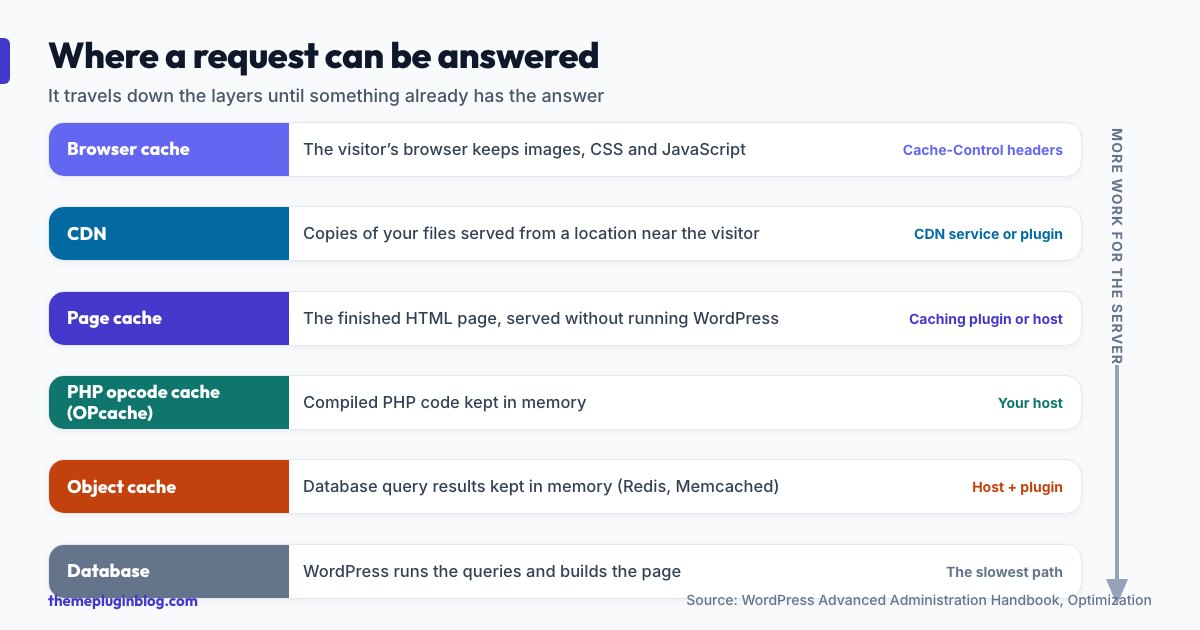
- Browser caching. Your visitor's browser keeps copies of images, stylesheets and scripts so it does not download them again on the next page. This is controlled by HTTP headers such as
Cache-Controlwith amax-age, andExpires. ETags let the browser ask "has this changed?" and receive a short 304 reply instead of the whole file. Some cache plugins can set these headers for you. - Page caching. The whole finished HTML page is saved as a static file and served without running WordPress at all. This is the biggest single win, and it is what most people mean by "a caching plugin".
- Object caching. WordPress saves the results of database queries in memory so repeated lookups skip the database. A persistent object cache needs a cache server such as Redis or Memcached on your host, plus a plugin that supports it. It matters most for dynamic sites such as shops and membership sites, where page caching cannot help much.
- Opcode caching. PHP itself can keep compiled versions of your code in memory (OPcache). This is configured on the server, usually by your host, rather than by a WordPress plugin.
On top of these, a CDN (content delivery network) serves copies of your files from servers close to the visitor, and some hosts add a server-level cache such as Varnish in front of WordPress. The documentation also calls running a recent PHP version "essential", since newer versions usually perform better, which is a free gain that comes from your hosting settings rather than from any plugin.
What the well-known caching plugins do
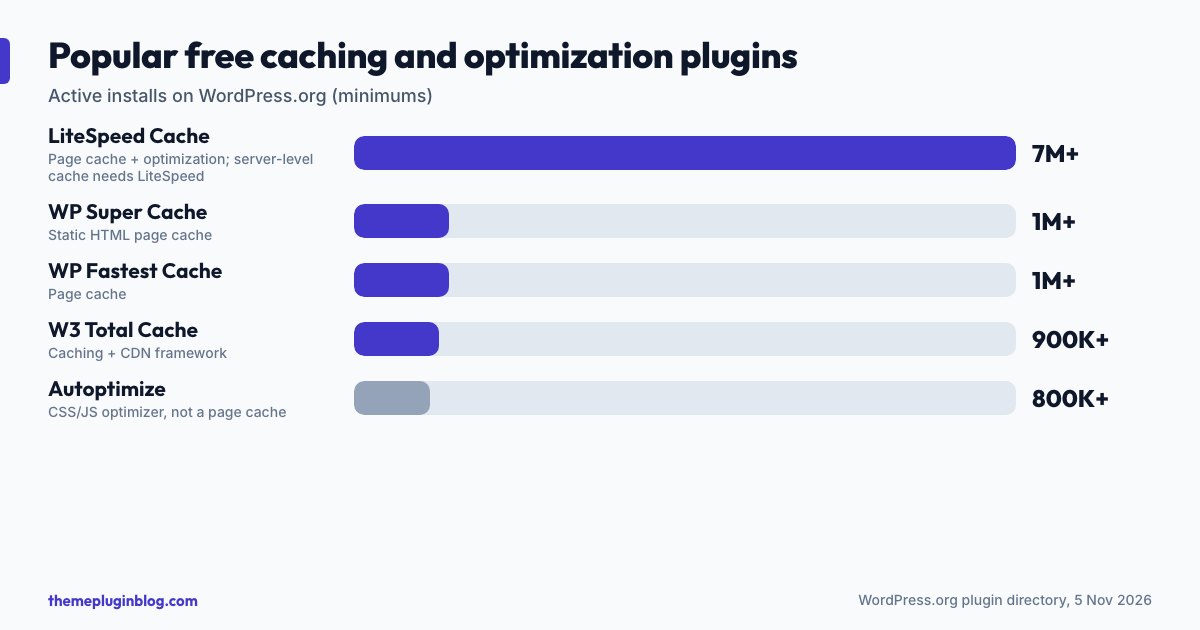
The plugins below are among the best known. Figures are from the WordPress.org directory on 5 November 2026; install counts are minimums.
LiteSpeed Cache
With more than 7 million installs, this is the most installed of the group. Its description calls it an all-in-one acceleration plugin that includes an exclusive server-level cache plus a collection of optimization features: object cache support (Memcached or Redis), image optimization, CSS and JavaScript minification and combining, critical CSS generation, and lazy loading of images. An important detail is in the requirements: the general features work on any web server, but the LiteSpeed-exclusive features, including the server-level page cache, need OpenLiteSpeed, a commercial LiteSpeed server, LiteSpeed-powered hosting or the QUIC.cloud CDN. If your host does not run LiteSpeed, you will get only part of what makes this plugin special.
WP Super Cache
This plugin generates static HTML files from your dynamic site. After a file exists, your web server delivers it instead of running WordPress. Its documentation explains that these static files are served to the vast majority of visitors: those who are not logged in, have not left a comment and have not viewed a password-protected post. Others get custom cached files. It is a straightforward page cache with fewer extras, which some people prefer.
W3 Total Cache
W3 Total Cache describes itself as a web-host-agnostic performance framework that works to improve Core Web Vitals and load times through caching and CDN integration, and says it only reaches its full benefit "when fully configured". In practice that means it offers many settings. That flexibility is its strength and its challenge: it rewards patience and careful reading, and can feel overwhelming at first.
WP Fastest Cache
A free cache plugin with more than a million active installs and a very high rating (98 out of 100 from over 4,000 ratings). Its listing says it is built to speed up WordPress sites and improve Google PageSpeed and Core Web Vitals scores. Read its settings page before enabling the optional extras, and switch them on one at a time.
Autoptimize
Autoptimize is worth a separate mention because it is not a full page cache. It aggregates, minifies and caches scripts and styles, can inline critical CSS and defer the rest, moves scripts to the footer, minifies HTML, and can lazy-load images including WebP and AVIF formats. People often pair it with a page-cache plugin, or with host-level caching, for a fuller setup.
A premium option: WP Rocket
WP Rocket has no free version; it offers a 14-day free trial and a money-back guarantee instead. Its pricing page lists plans by number of sites (one, three or fifty and up) and features including page caching, preload, lazy loading, Delay JavaScript, Remove Unused CSS and a built-in CDN offer. At the time of writing it was running a Black Friday offer with the one-site plan from about $3 a month on a one-year licence, valid until 28 November 2026, and renewals are at the regular price. Check the current price before you buy. Premium plugins mainly trade money for convenience: sensible defaults and less tinkering.
How to choose
- Check your host first. Many hosts include their own caching (server-level page caching, sometimes a CDN or an object cache). Running a second page cache on top can cause conflicts or double work. Look in your host's control panel or documentation, or ask support.
- If your host runs LiteSpeed, LiteSpeed Cache is the obvious choice because you get the server-level features.
- If you want simple, WP Super Cache or WP Fastest Cache give you a page cache with few settings.
- If you want control, W3 Total Cache offers the most options, at the cost of complexity.
- If you want less tinkering and are happy to pay, consider a premium plugin with good defaults.
- Use only one page-cache plugin. Two will fight each other.
What not to cache
Caching works best for pages that are the same for everyone. It must be handled with care for anything that is personal or changes constantly:
- Shopping carts, checkout and account pages should never be served from a shared page cache. Good plugins exclude them automatically for known shop plugins; verify yours does.
- Logged-in users usually bypass the page cache, so your own view of the site is not a reliable test of what visitors get. Test in a private window while signed out.
- Pages with live data, such as search results, forms with security tokens or real-time prices, need exclusions or a short cache lifetime.
Common problems and simple fixes
- "My changes do not show up." The cache is serving the older copy. Most plugins clear the cache automatically when you publish or update, but theme changes, widget changes and some plugin settings may need a manual "Clear cache" click.
- A page looks broken after turning on minify or combine options. These options can clash with certain themes and plugins. Turn them on one at a time and test after each, rather than enabling everything at once.
- Forms or comments fail after caching. Security tokens on a cached page can expire. Exclude the page from caching or shorten the cache lifetime.
- Nothing seems faster. Check whether your host already caches pages, whether your bottleneck is actually images or a slow plugin, or whether the test page was logged-in. Caching does not fix a slow theme or oversized images.
Measure before and after
Do not guess whether caching helped. Test a few important pages with PageSpeed Insights before you install anything, then again afterwards, and compare. Look at the Core Web Vitals: a good Largest Contentful Paint is 2.5 seconds or less, a good Interaction to Next Paint is 200 milliseconds or less, and a good Cumulative Layout Shift is 0.1 or less. Caching mainly improves loading time, so LCP is where you will usually see the change.
The WordPress documentation also points to wins that no plugin delivers by itself: use a recent PHP version, compress and size images properly (WebP is smaller than older formats), serve media through a CDN, and keep the database tidy, including a limit on stored post revisions and keeping autoloaded options small (the documentation suggests under 800 KB).
The bottom line
Caching saves the result of work WordPress has already done. For most sites, one page-cache solution, switched on with sensible defaults and checked against your host's own caching, delivers most of the benefit. Add browser caching and a CDN when you are ready, consider an object cache only if you run a dynamic site, and measure each change. Start simple, test as a logged-out visitor, and add complexity only when the numbers tell you to.
Sources
Plugin descriptions, versions and install counts are from the WordPress.org plugin directory and vendor pages on 5 November 2026 and change over time.